
Loading Screen
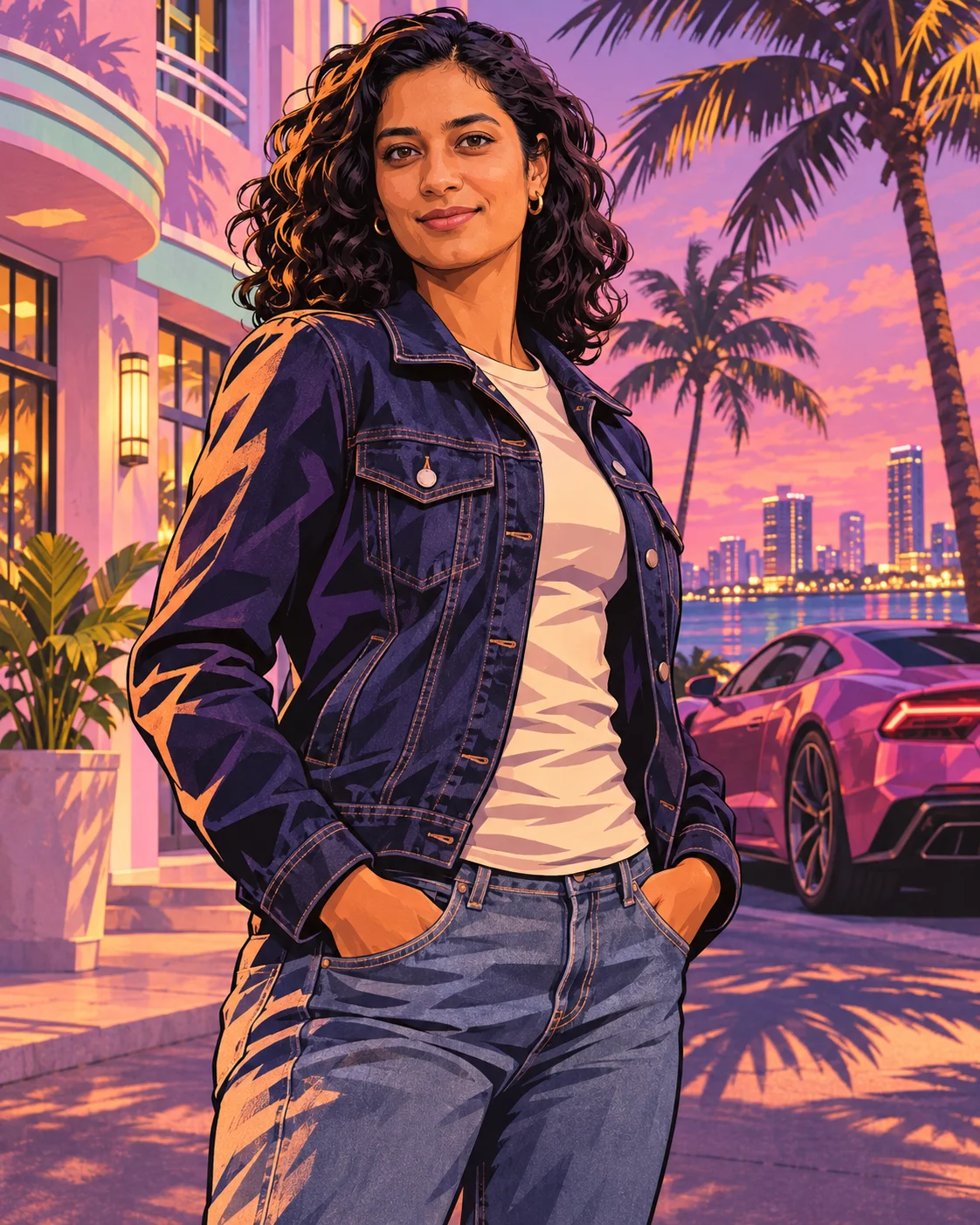
Create a loading-screen poster with the GTA 6 filter, adding palms, bold outlines and a coastal sunset. A clear face helps the character stay recognizable.
Your photo, a new scene
Create a GTA-style cover, character card, wanted poster or game-world scene.
The GTA 6 filter turns photos or text into game-inspired images. Choose an effect for its scene, lighting and style, then add a portrait, car, product or place as requested. Some maps, radio menus and wordmarks can start from text. Previews illustrate possible looks; results vary by input and model.
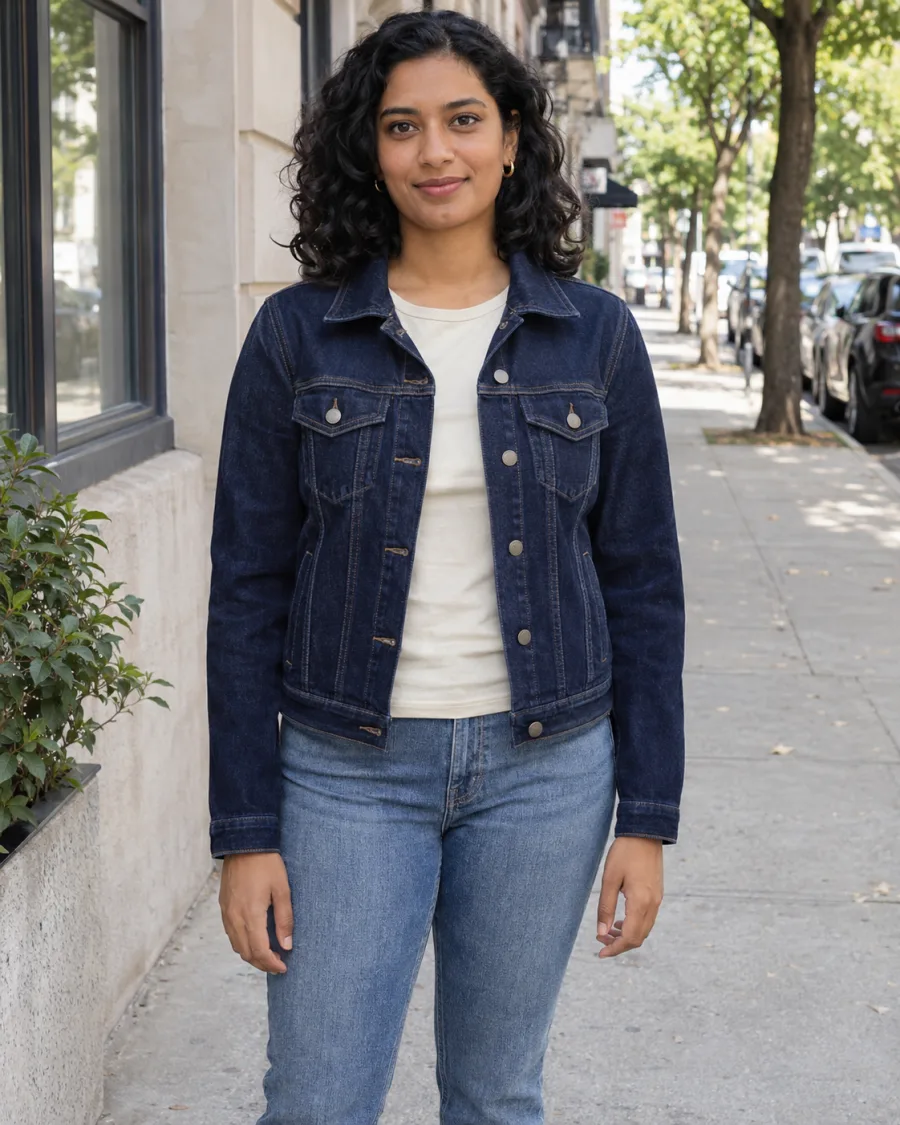
Start with an effect, then add the photo or text it needs.
STEP 1
Preview a GTA 6 filter effect, choose Recreate and add its requested photo or text. Character Select uses one group photo or three portraits; some effects accept extra references.
STEP 2
Review the model, aspect ratio, resolution, image count and credit estimate. Each GTA 6 filter effect has prepared instructions. Sign in and submit when ready.
STEP 3
Open My creations to inspect and download the result. Check faces, hands, clothing and the background; you can also try the same photo with another effect.
Choose a look for the image you want to make.
Create a loading-screen poster with the GTA 6 filter, adding palms, bold outlines and a coastal sunset. A clear face helps the character stay recognizable.
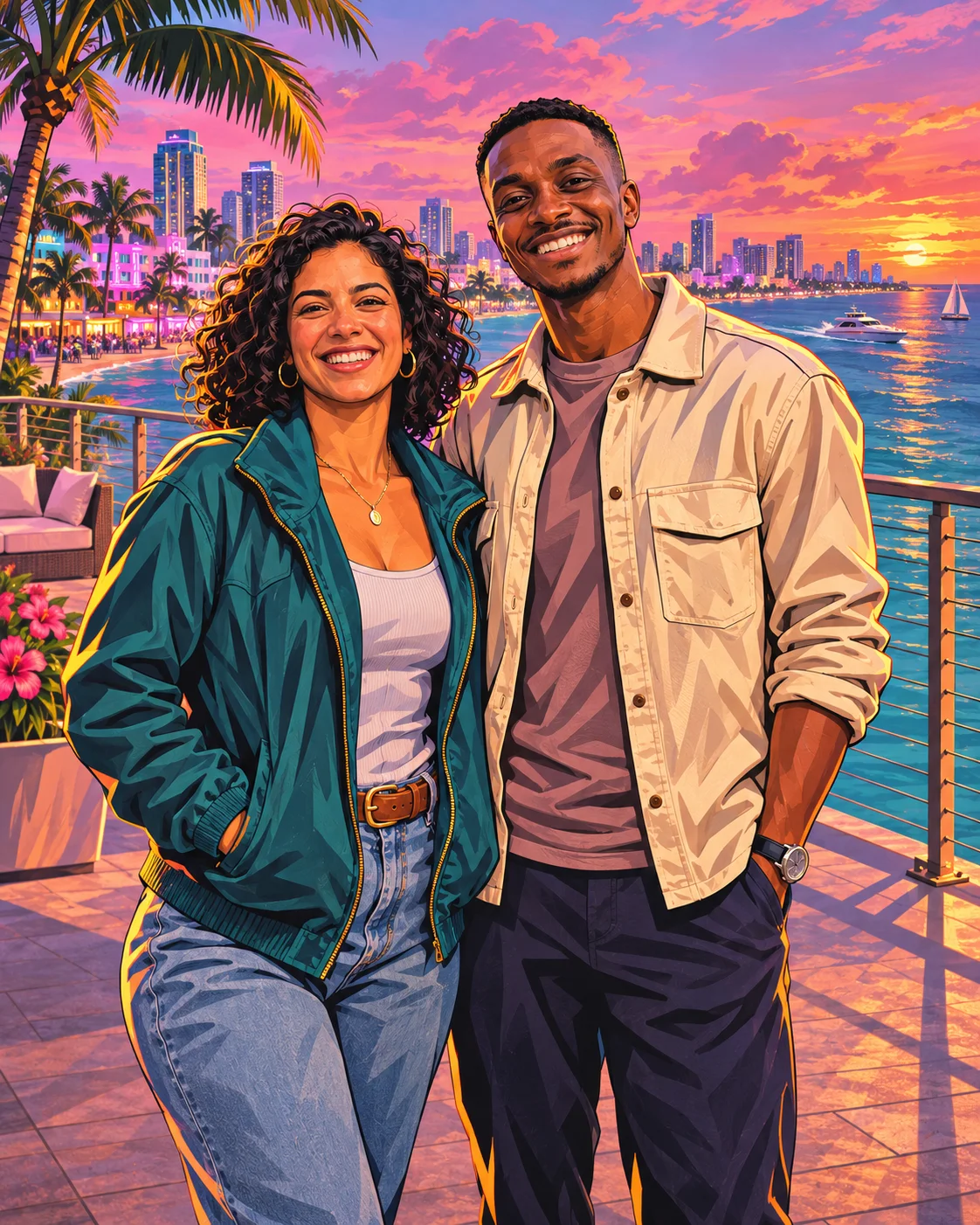
Make a two-person cover with the GTA 6 filter using one photo together or portraits uploaded A then B. The effect places A on the left and B on the right; check the result.
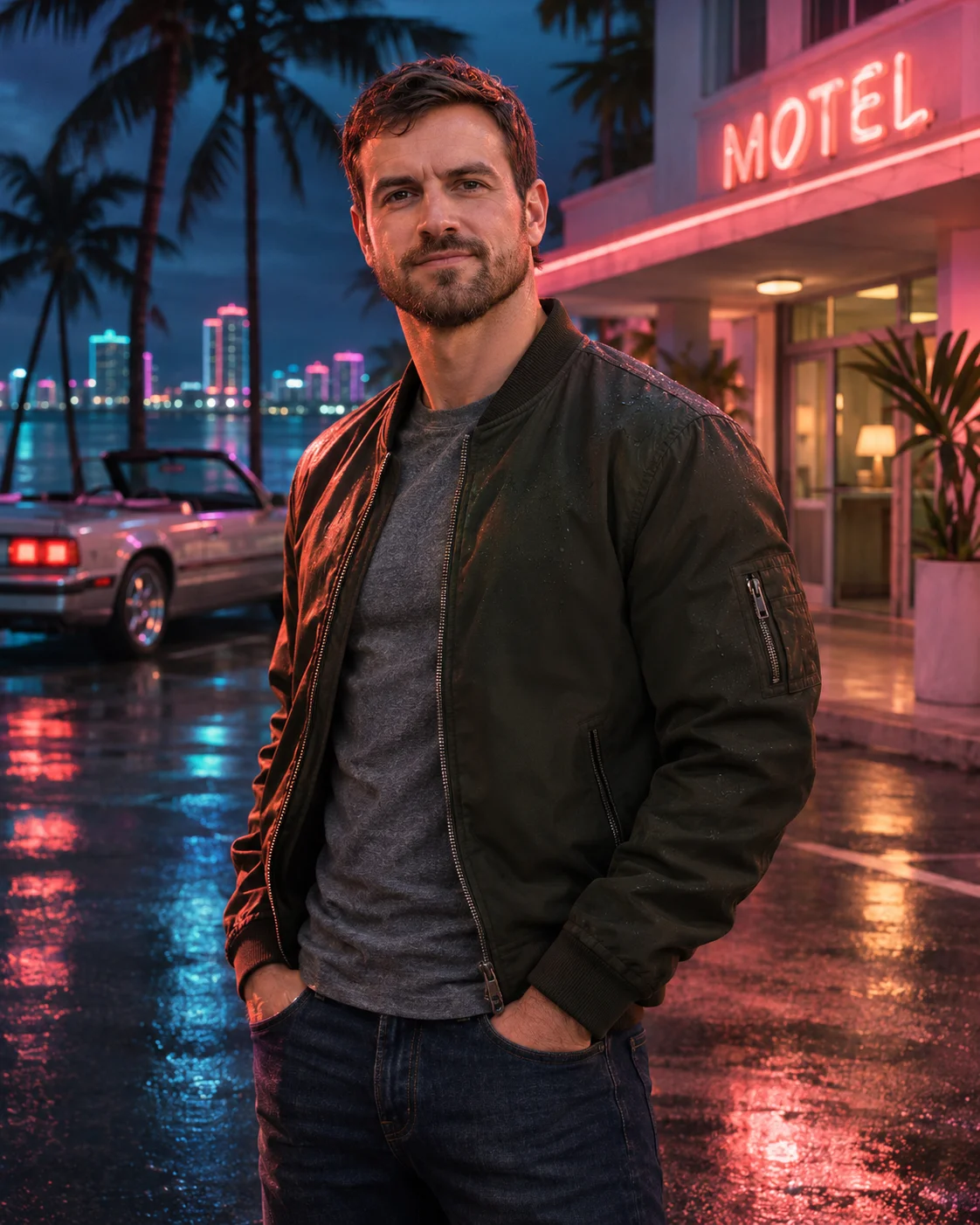
Place a portrait in a neon-lit coastal scene. The photographic look keeps the subject in focus and suggests a motel, palms and a convertible in the background.
Add a fan-inspired Lucia beside someone in your photo. Choose the left or right person and optionally add a character reference; check the result for changes to existing faces.
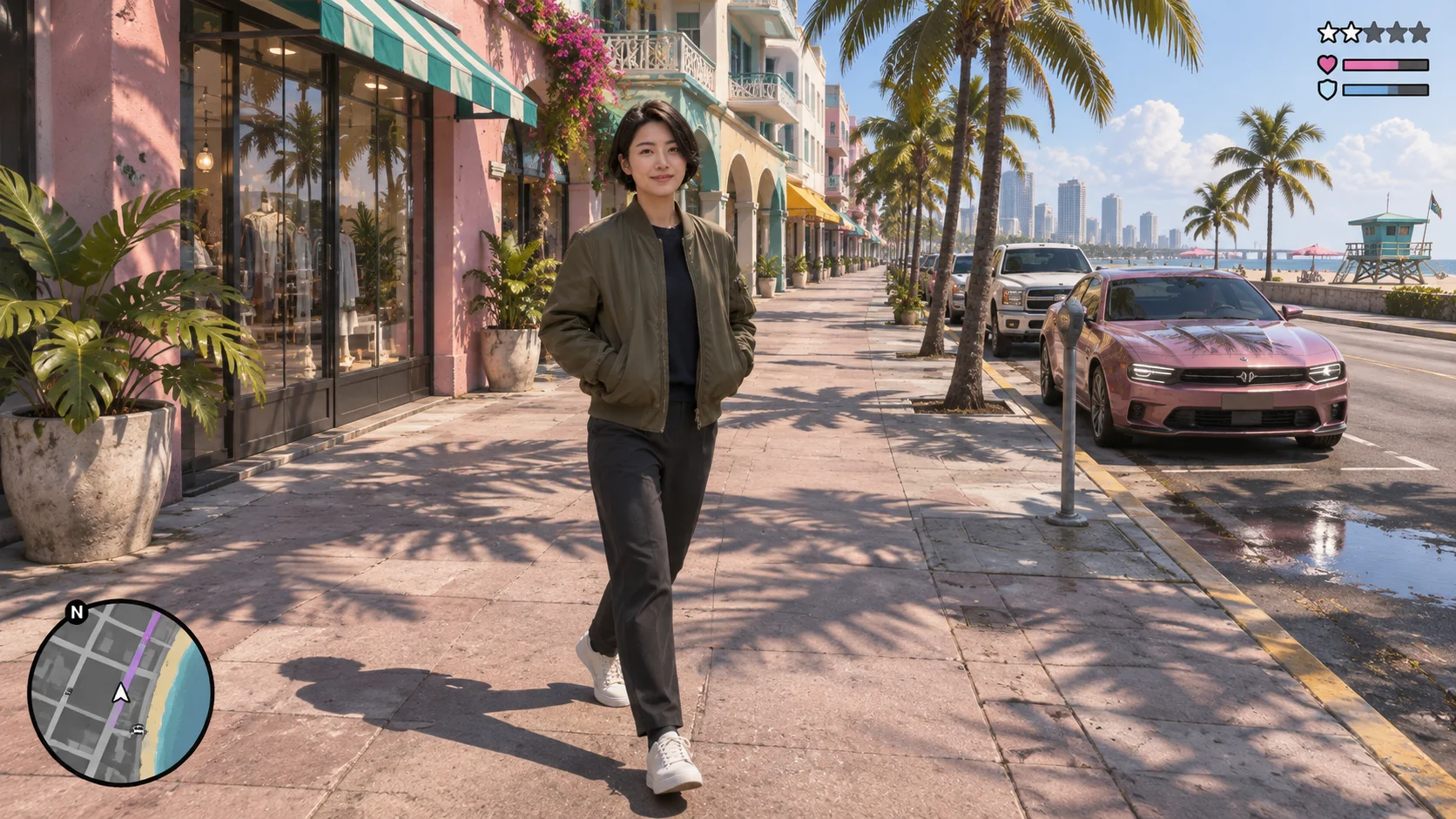
Use the GTA 6 filter to imagine a game scene with a minimap and status icons. Leave room around your subject; the result is an AI image, not actual gameplay.
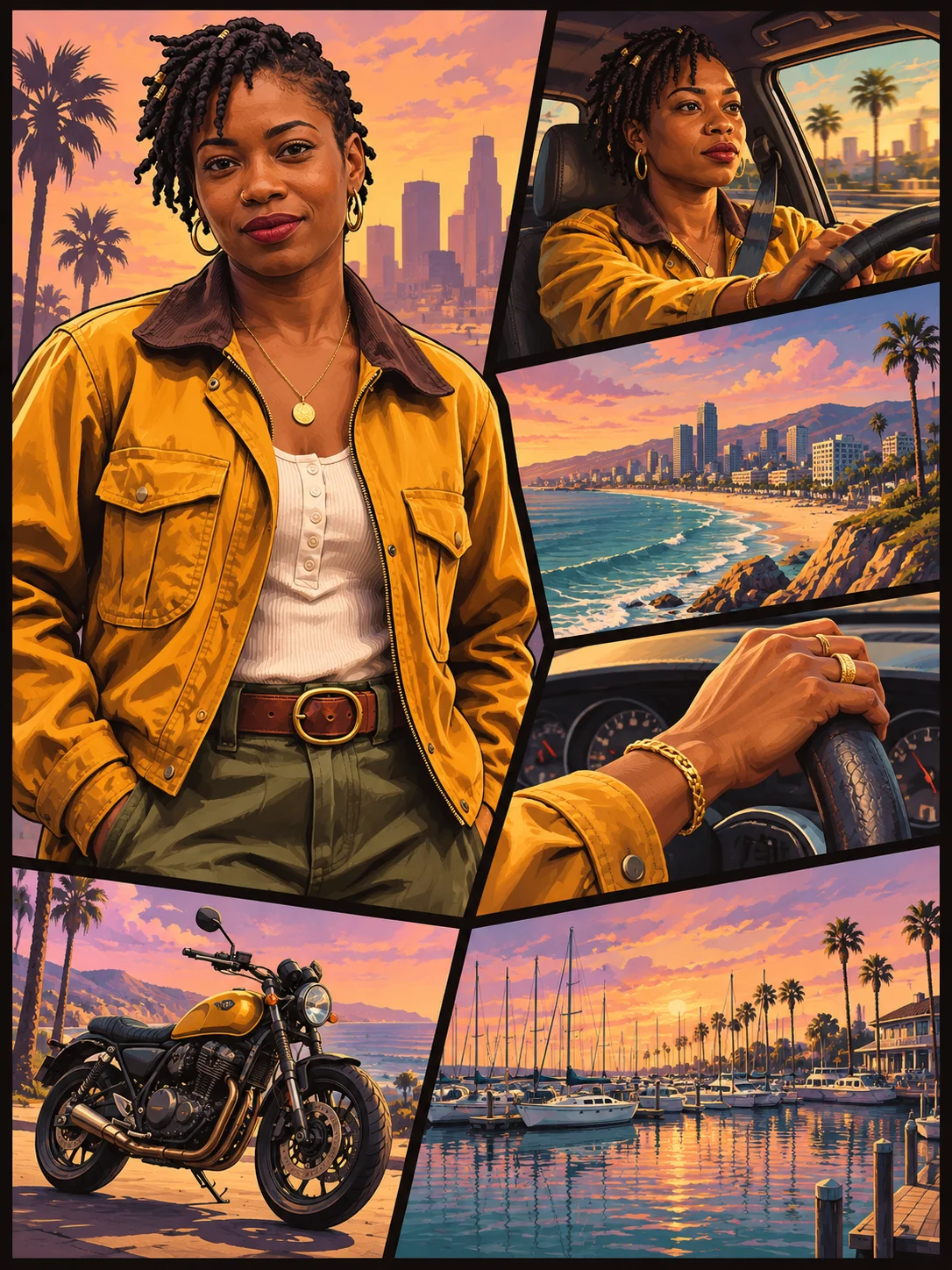
Turn one portrait into a multi-panel cover with driving and coastal scenes. A clear face gives the central character a better chance of remaining recognizable.
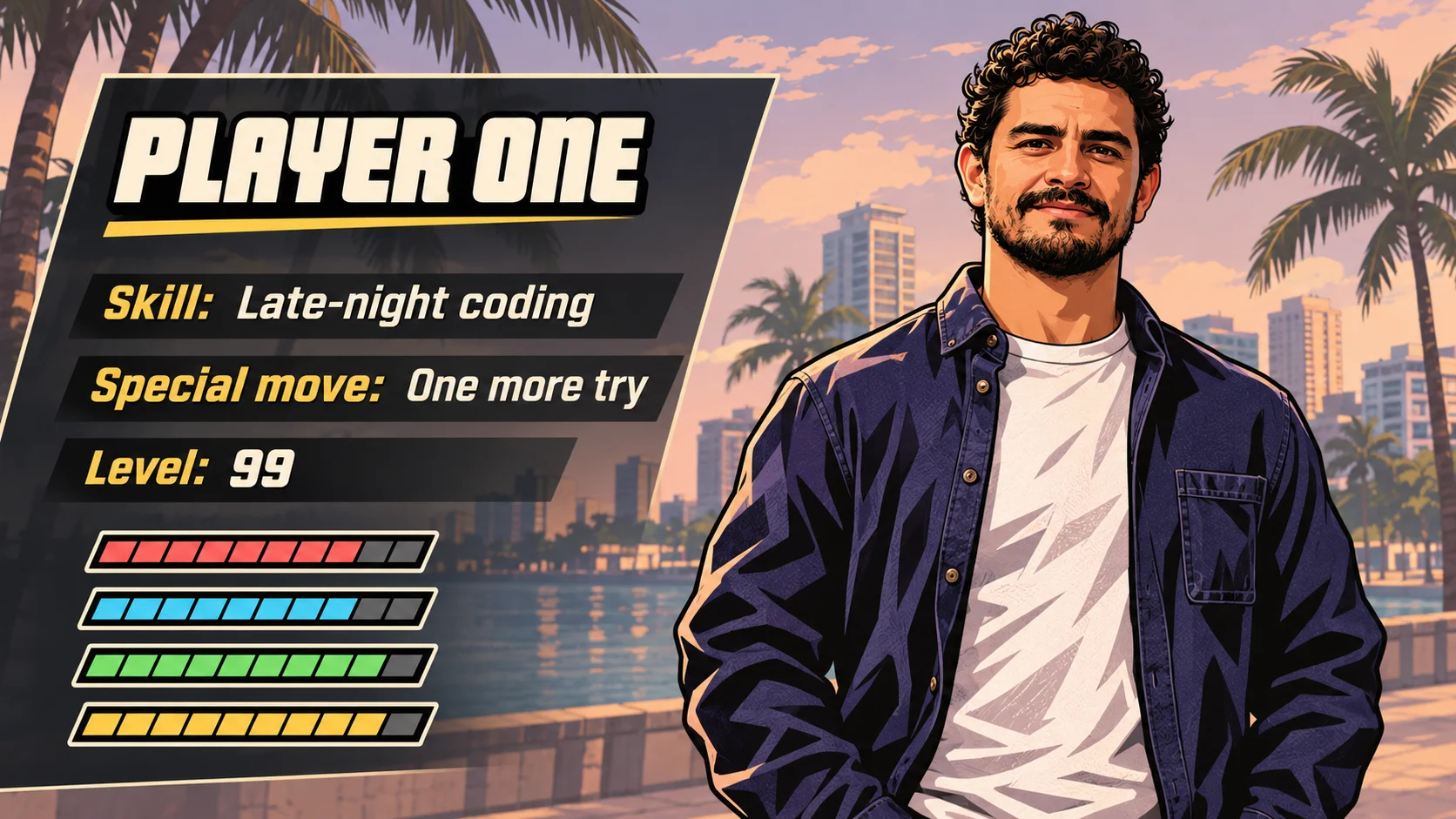
Add a portrait, name, skill, special move and level to a game-style profile card. Check the generated text for misspellings.
Create a garage customization image with the GTA 6 filter and a clear vehicle photo. Compare the generated bodywork and wheels with your reference.
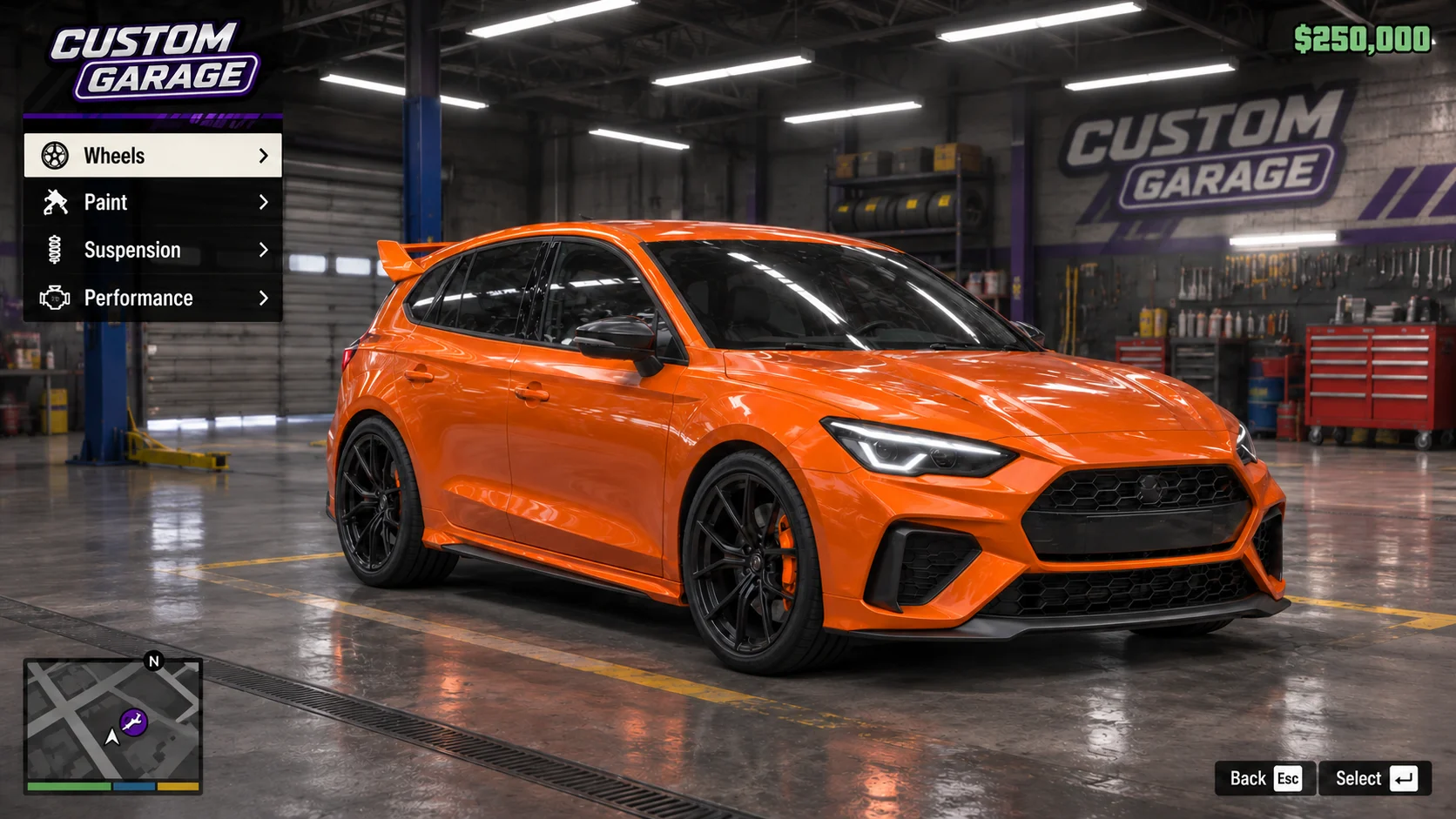
The reference image and the chosen effect both influence the result.
Use a sharp photo showing the face and other details you want to keep. Avoid heavy shadows or masks; for a full-body scene, include the body and leave space around it.
A close portrait gives the GTA 6 filter more facial detail; a wider photo includes clothing and pose. Choose an available output ratio for its destination and check the final crop.
Try another effect with the same photo if the setting is wrong. If the face remains unclear, use a sharper reference. Change one choice at a time to compare results.
Zoom in on eyes, hands, accessories and vehicle details: AI can alter them or add unexpected objects. Only upload and share photos when you have the necessary rights and consent.
One credit balance for images, videos and motion transfer.
For your first ideas.
$218.9 charged yearly
10,080 credits/year
Up to 1,680 images
Up to 560 videos
For a steady creative flow.
$410.9 charged yearly
21,600 credits/year
Up to 3,600 images
Up to 1,200 videos
For more creations, more often.
$593.4 charged yearly
43,800 credits/year
Up to 7,300 images
Up to 2,433 videos
Try before you subscribe
Prices in USD; taxes and total shown at checkout. Subscriptions renew automatically; cancel in Billing settings. Subscription credits expire each period; one-time credits never expire.
Refunds: request within 72 hours. Used purchased credits and applicable non-refundable processing costs (up to 6%) are deducted. Terms · Refund Policy
A few useful details before you create your first image.
The GTA 6 filter creates a fan-inspired image from a photo or text. Choose an effect and its prepared instructions guide the style, setting and composition.
No. GTA6 AI Video is an independent service, unaffiliated with Rockstar Games or Take-Two Interactive. It creates AI images outside the game and does not apply an in-game camera effect.
Choose a sharp image with a clear face, vehicle or product, and leave room for the intended composition. Use a photo you have permission to upload, including consent from anyone shown.
Couple Cover accepts one photo together or two portraits. For Character Select, use one group photo or three portraits in A, B, C order. Check faces and positions in the result.
Try a clear, well-lit photo showing the animal’s head and body. The selected effect and model may change its coat, pose or surroundings.
Check the estimate in the form; it varies with the model, resolution and image count. Sign in to submit and review the displayed balance and cost first.
GPT Image 2.5 Sunburst is selected by default. Other compatible models appear in the menu; their settings, credit estimates and interpretation of an effect can differ.
No. Each effect has prepared instructions. Choose a scene and add the requested photo or text; some effects also let you edit names or other details.
GTA City Map can start with a city name, an optional screenshot and landmarks. The result is a fictional illustration and cannot be used for navigation.
Use portrait for a phone wallpaper, square for a profile image or landscape for a wider scene. Where available, Auto lets the model choose; ratios depend on model and resolution.
Open My creations to view recent tasks, inspect a finished image and download it. If a request fails, check its message before adjusting your input or settings.
For a compatible result, choose Make a video to prepare a new draft. Video creation is a separate request with its own model, input requirements and credit estimate; it starts when you submit it.
Examples use fictional inputs, and some start with text. Results vary with your photo, model and settings; check faces, clothing and lettering before sharing.
Choose an effect, add your photo and make your own scene.