
Place an object in a scene
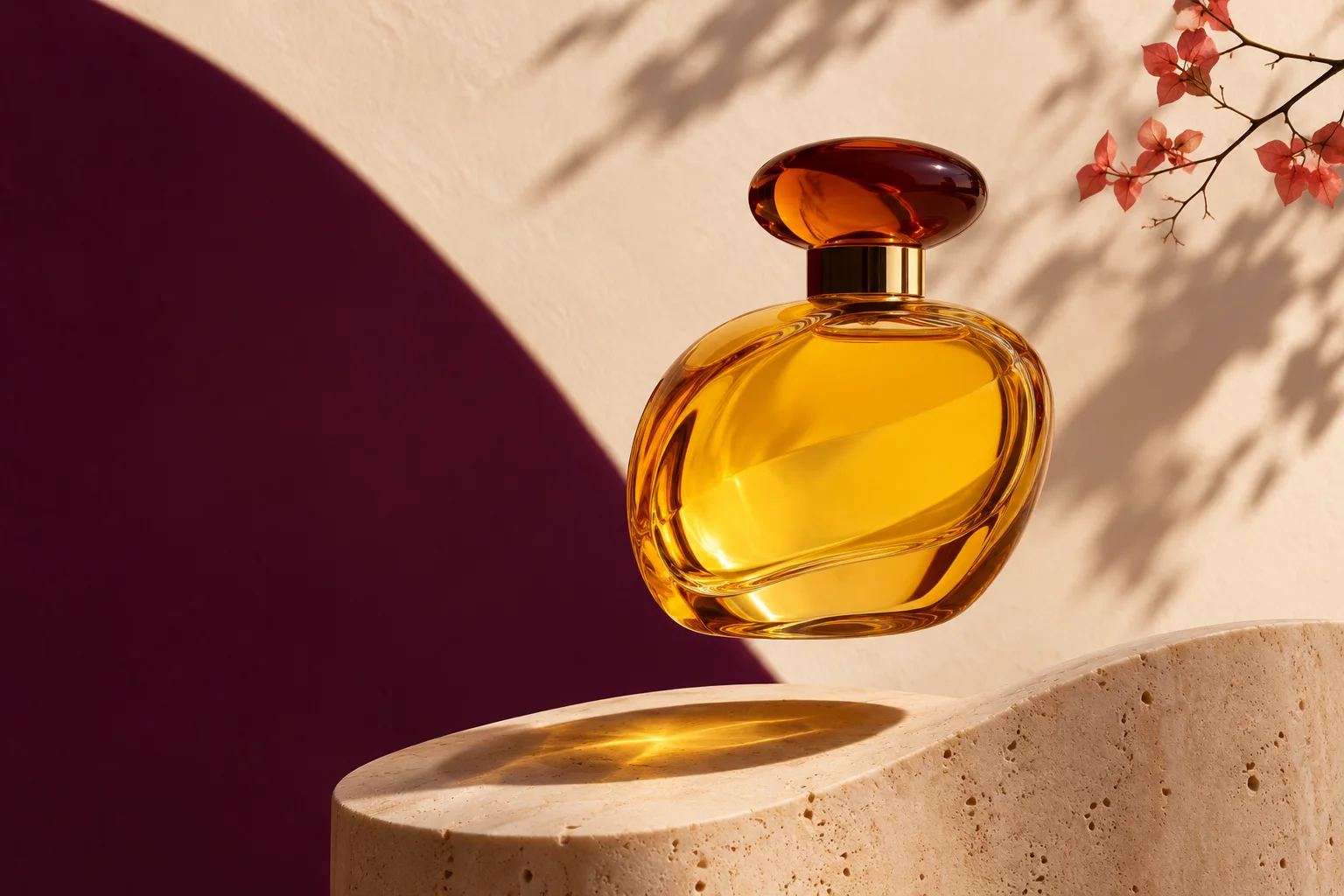
Specify the object, surface and light in your brief. If its shape matters, use a supported reference and check edges and small markings in the AI image generator result.
Describe a subject and setting, or guide an edit with a supported image reference.
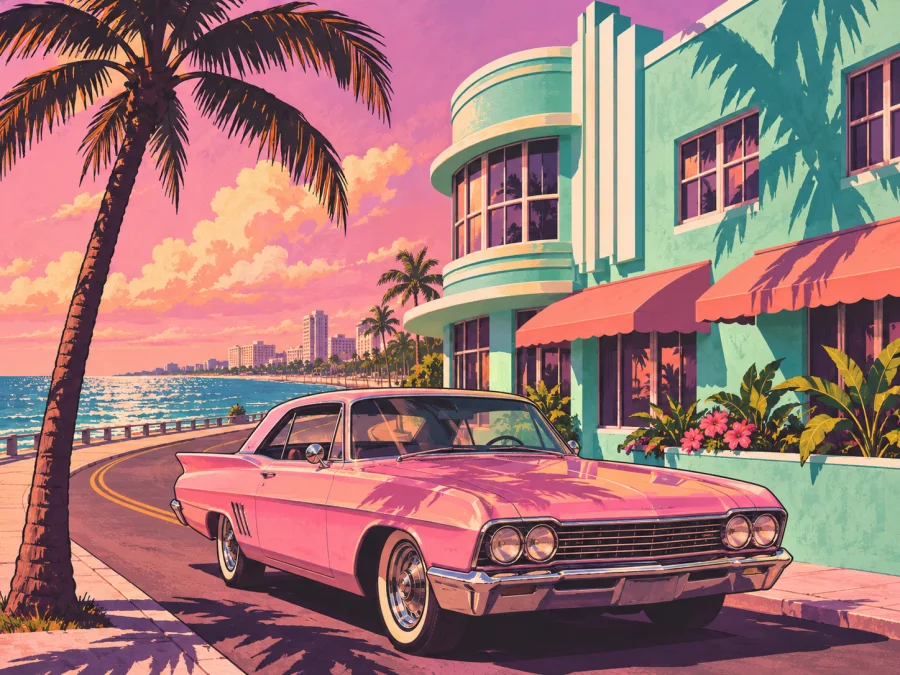
Describe the subject, setting and view for a still image. Select an AI image generator model and any supported reference, then check the frame and estimate before creating.
Describe a subject and setting, or guide an edit with a supported image reference.
STEP 1
Choose an AI image generator model and describe the subject, surroundings and composition you want to explore.
STEP 2
If supported, add a reference and explain what to keep or change. Select the available aspect ratio, resolution and output count, then review the estimate.
STEP 3
Generate while signed in and inspect the result in My creations. Download the still or choose it for a compatible video input.
These illustrative images show possible visual directions; they were not generated with GTA6 AI Video.
Specify the object, surface and light in your brief. If its shape matters, use a supported reference and check edges and small markings in the AI image generator result.
Describe the person, clothing and environment, then compare AI image generator variations. Choose a clear face and outfit if you intend to bring the character into a video.
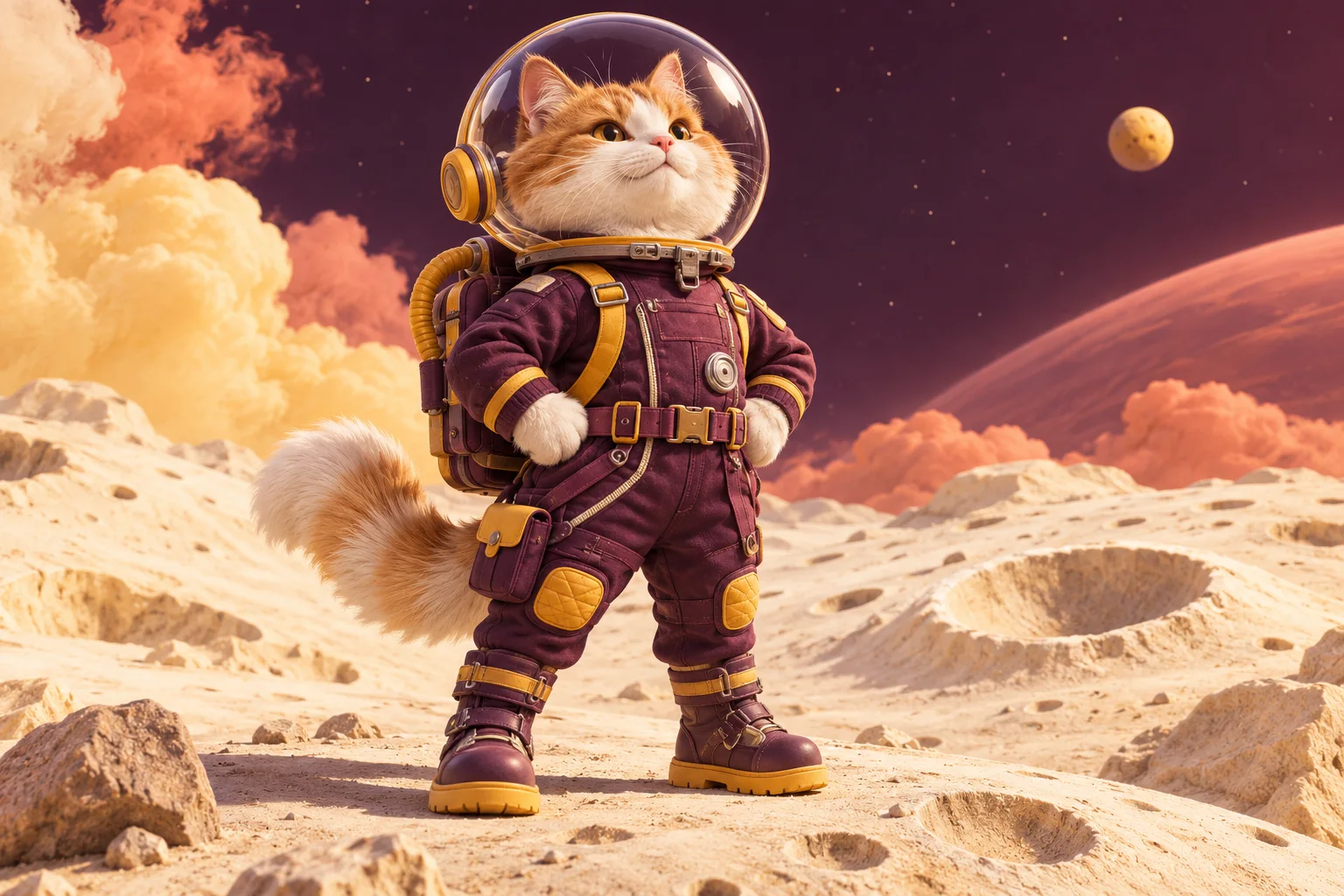
Add a location, time of day and camera perspective to the AI image generator prompt. Inspect the finished image for structural details and any text that needs to be readable.

Vary composition and subject placement to compare AI image generator treatments. Keep a successful still or use it as a starting frame in a compatible video workflow.
Choose an AI image generator model and keep the brief, available controls and credit estimate together while you explore.
Give the AI image generator a subject and setting, or add a supported reference for an existing visual direction.
Set the available aspect ratio, resolution and output count; review the AI image generator estimate before submitting.
Inspect your completed image in My creations. A suitable AI image generator result can be used in a compatible video workflow.
Decide what the image needs to communicate and how it will be used.
Name the main person, object or place and explain their relationship to the setting.
A full-body frame can provide more context for an action scene than a close portrait.
When a model supports references, identify which features to preserve and what to change.
Check hands, small text and edges before using the image in another workflow.
The workspace shows an estimated credit amount for the selected model and settings before you submit. Review the available plans and your balance when you are ready to create.
For your first ideas.
$218.9 charged yearly
10,080 credits/year
Up to 1,680 images
Up to 560 videos
For a steady creative flow.
$410.9 charged yearly
21,600 credits/year
Up to 3,600 images
Up to 1,200 videos
For more creations, more often.
$593.4 charged yearly
43,800 credits/year
Up to 7,300 images
Up to 2,433 videos
Try before you subscribe
Prices in USD; taxes and total shown at checkout. Subscriptions renew automatically; cancel in Billing settings. Subscription credits expire each period; one-time credits never expire.
Refunds: request within 72 hours. Used purchased credits and applicable non-refundable processing costs (up to 6%) are deducted. Terms · Refund Policy
What to know before you create.
An AI image generator creates a still image from a written description or supported visual references. Different models expose different controls. Select a model in the workspace to see its supported inputs and settings.
Start with the subject and its setting, then describe the view, lighting and visual style. A brief such as a person beside a brightly lit car at dusk gives the AI image generator a clearer starting point than a long list of unrelated adjectives.
Some AI image generator models accept a reference image. Add a photo you have permission to use and describe the intended change and the features you want to preserve. Check the result for unexpected changes before reusing it.
Choose a ratio that fits the destination and the available model controls. A portrait frame may suit a vertical video reference; a wide frame can provide space for a location. Keep important details away from the edges if a later workflow may crop the image.
A completed still can be selected in a compatible photo role when the workflow supports it. Check the template’s required subject and crop first. A clear face and visible clothing are useful for a traveler, while the car wash can also accept an optional car image.
Appearance can vary, including facial details and accessories. Use an image you are authorized to edit, review the output carefully and do not assume the AI image generator preserves every identifying detail.
The available output count depends on the selected model. The AI image generator displays its supported controls and an estimate for the current settings before submission.
Small lettering, logos and fine edges can be inconsistent in generated images. Inspect them at full size; if precise wording is essential, consider adding it later in an appropriate editor.
Completed results are associated with the account used for generation and can be reviewed in My creations or history. An illustrative sample on this page is not your generated result.
Review the final image and your rights to any reference photo. Check the applicable service terms and model conditions for the planned use. The AI image generator cannot verify permissions for you.
Try the same concise subject and composition with the AI image generator models you want to compare. Their available settings and reference support can differ, so review the displayed options and credit estimate for each.
Describe one change clearly and say which visible qualities should remain. Compare the AI image generator result with the uploaded image for unintended changes to the face, clothing and background.
A still from the AI image generator can be used in a compatible photo-based video workflow. Select a crop that shows the subject and clothing required for the intended scene.
Open the AI image generator result at a useful size and check hands, edges, lettering and object shapes. If a detail is essential, improve the brief or use another supported edit and compare the two results.
Give the AI image generator a setting that does not obscure the subject. If the image will be used in a motion scene, leave enough space around the parts expected to move.
Describe a subject and setting, or guide an edit with a supported image reference.