
Frame a short character moment
Begin with a person and a simple action, then place them in a setting. Review expressions and gesture timing in the AI video generator result.
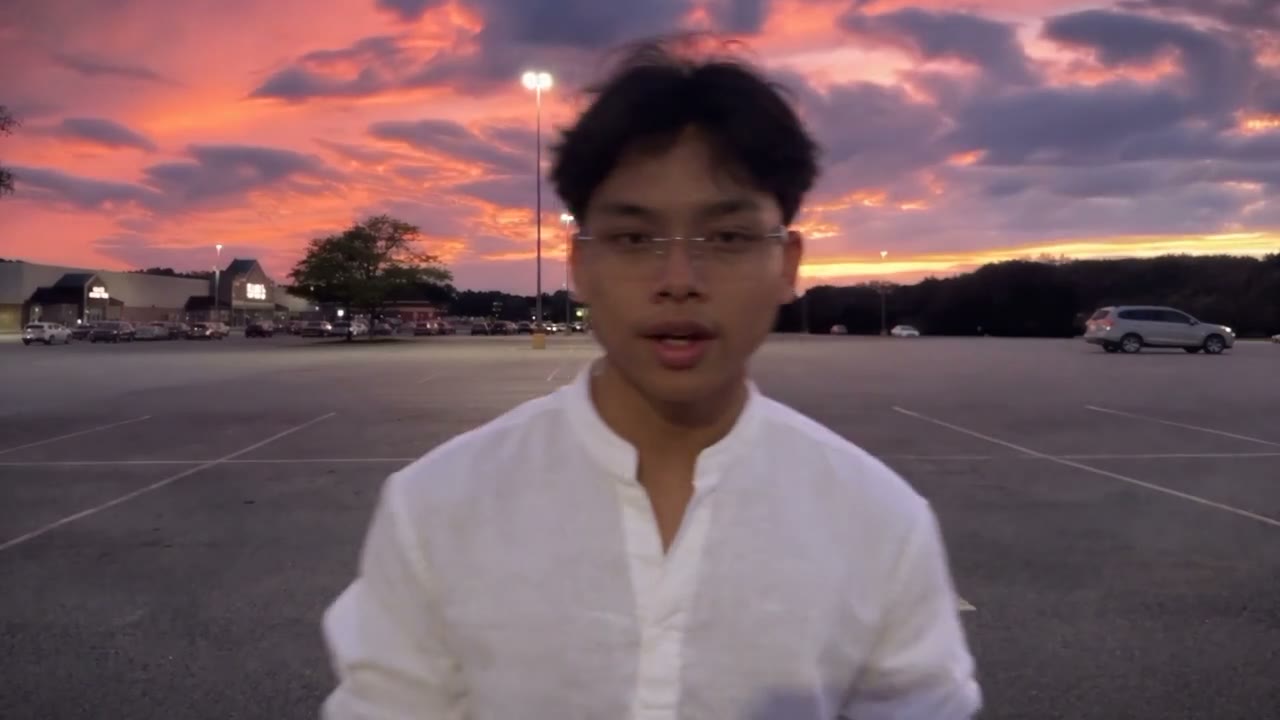
Choose a model, describe a scene and add the supported references for your idea.
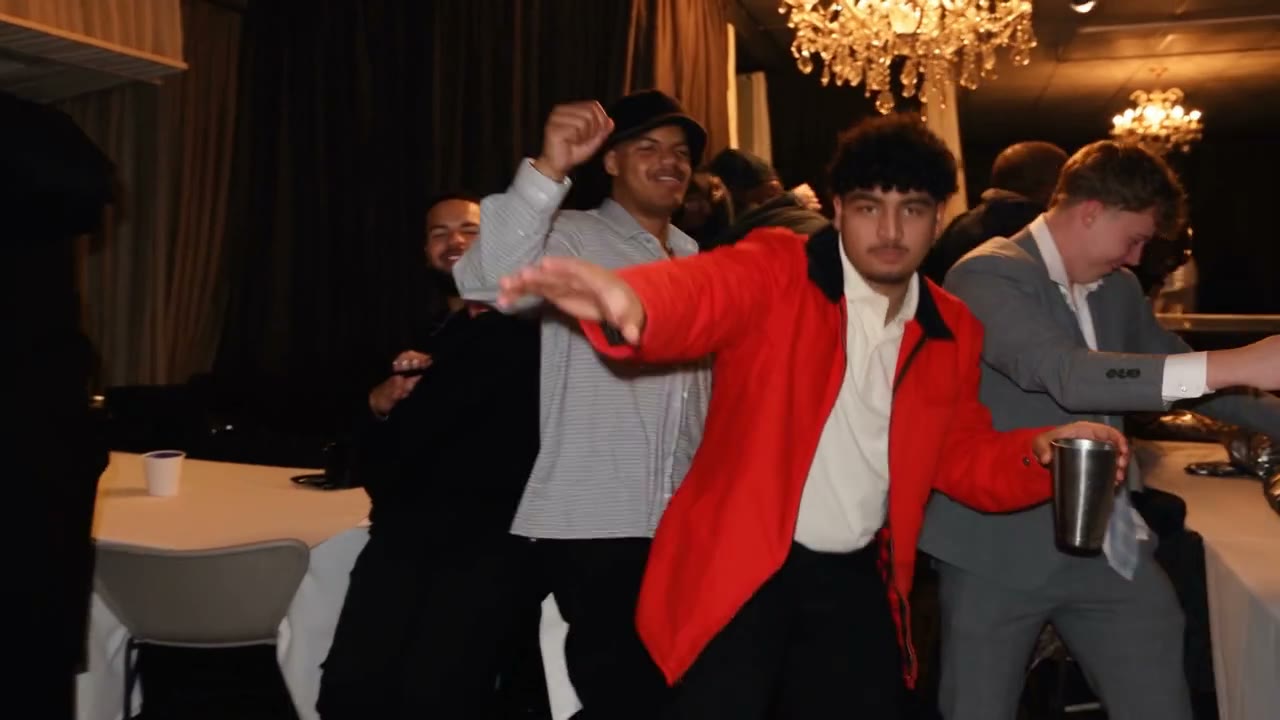
Choose a subject, describe what happens and select a compatible model. The AI video generator shows the inputs available for that model and an estimate for the selected settings.
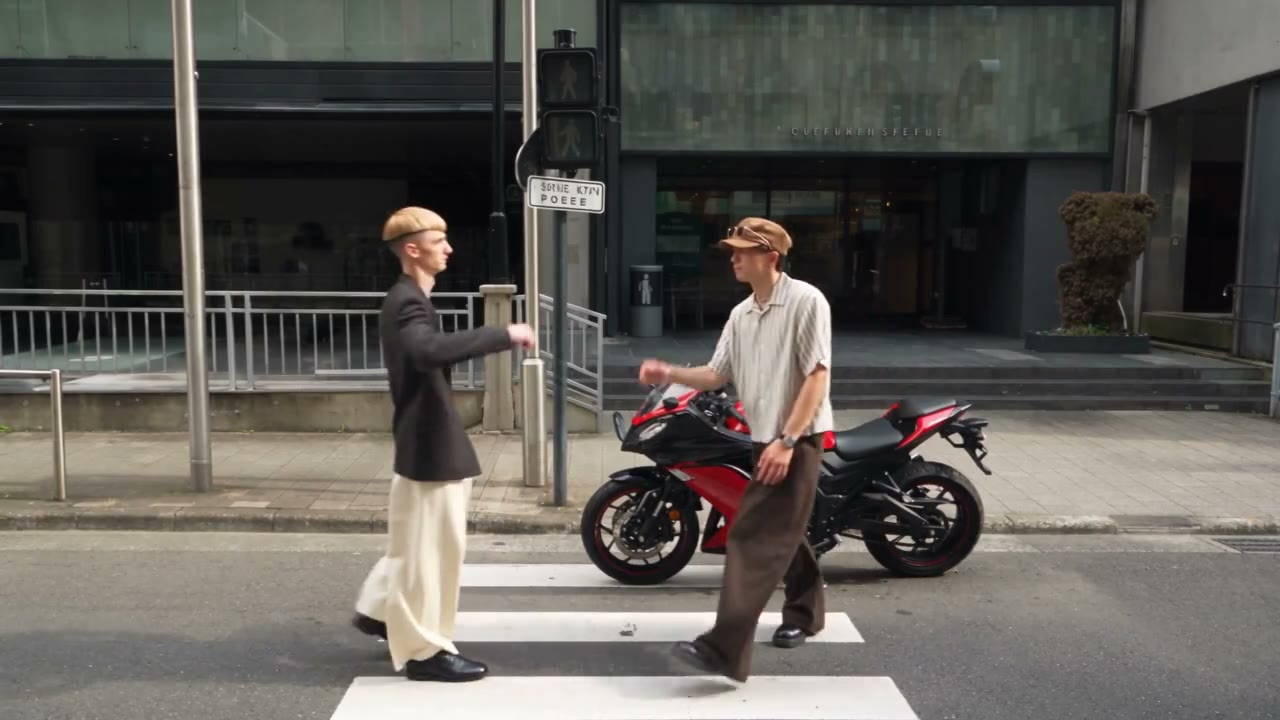
Choose a model, describe a scene and add the supported references for your idea.
STEP 1
Choose a model and the input mode offered by the AI video generator. Write a scene description or prepare the supported image and video references.
STEP 2
Set the available frame, duration and resolution. Read the estimated credits after changing settings, because different models and reference lengths can affect the quote.
STEP 3
Sign in and generate. Play the whole result in My creations; compare movement, faces and background continuity before downloading.
These illustrative AI video clips suggest creative directions. They were not generated with GTA6 AI Video, and results vary by model and inputs.
Begin with a person and a simple action, then place them in a setting. Review expressions and gesture timing in the AI video generator result.
Describe where the camera starts and how it travels. Inspect the background across the AI video generator clip to see whether its geometry remains coherent.
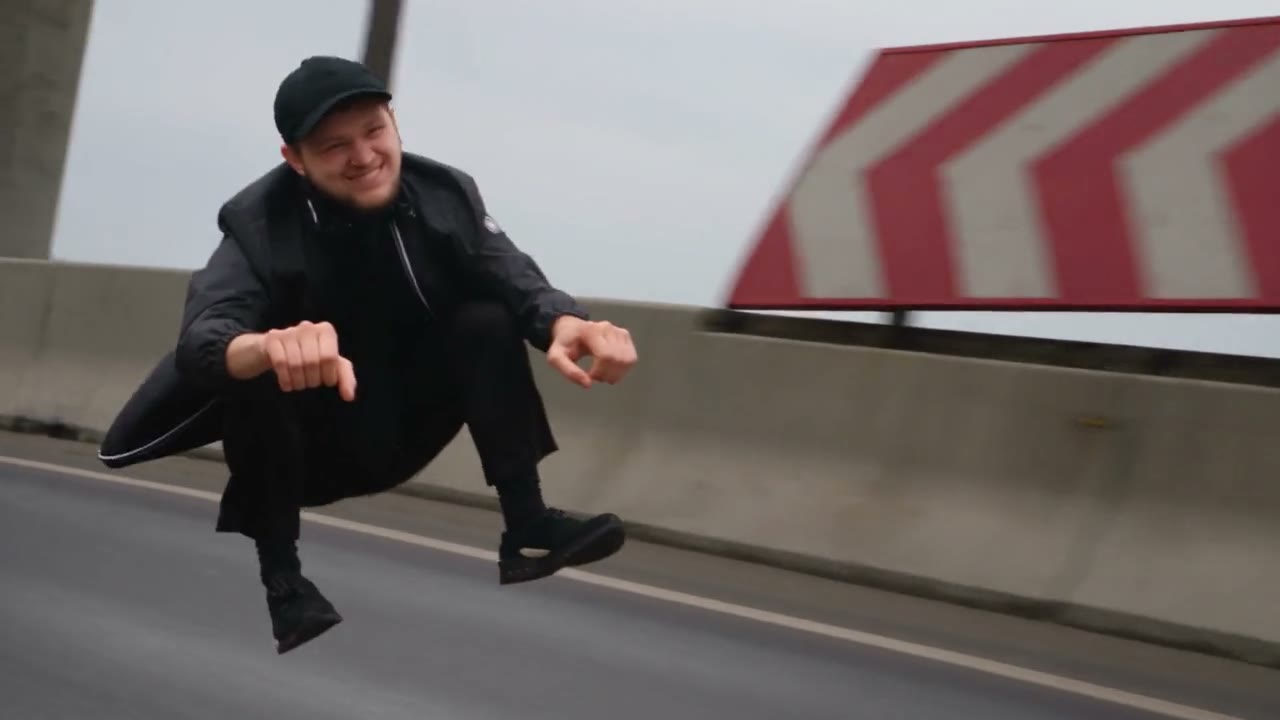
Set an action in a location, specify the atmosphere and compare the resulting motion. A focused AI video generator brief makes variations easier to assess.
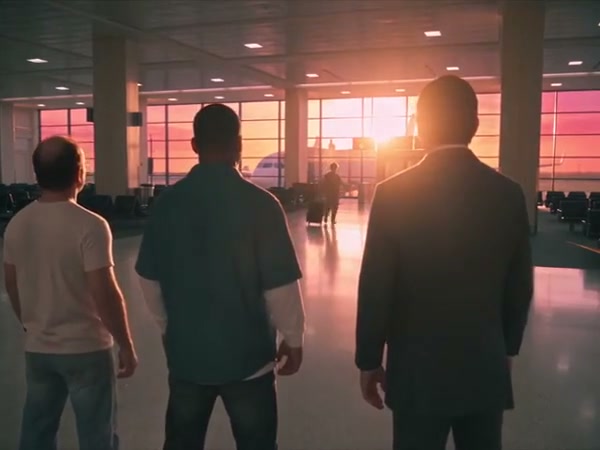
Use a written description or a supported image to guide the subject. Browse a prepared trend when you want the AI video generator to start from an existing performance.
Set up the AI video generator around the media and action you want to explore, then check the estimate.
Start from text, a still or supported footage. The AI video generator displays the available input modes for your selection.
After selecting the model, length, format and supported options, check the AI video generator credit estimate.
Play the AI video generator result through its ending, then download it or return through account history.
Match the input to the action and the model you choose.
Describe who or what moves, where it happens and the main change you want to see.
A model may accept a still, a video or other media. The form shows which inputs are available.
Choose an available duration and aspect ratio for the way you plan to view the result.
Review faces, objects and background continuity from the first frame to the last.
The workspace shows an estimated credit amount for the selected model and settings before you submit. Review the available plans and your balance when you are ready to create.
For your first ideas.
$218.9 charged yearly
10,080 credits/year
Up to 1,680 images
Up to 560 videos
For a steady creative flow.
$410.9 charged yearly
21,600 credits/year
Up to 3,600 images
Up to 1,200 videos
For more creations, more often.
$593.4 charged yearly
43,800 credits/year
Up to 7,300 images
Up to 2,433 videos
Try before you subscribe
Prices in USD; taxes and total shown at checkout. Subscriptions renew automatically; cancel in Billing settings. Subscription credits expire each period; one-time credits never expire.
Refunds: request within 72 hours. Used purchased credits and applicable non-refundable processing costs (up to 6%) are deducted. Terms · Refund Policy
What to know before you create.
The AI video generator offers different inputs by model. A text mode begins with a description, an image mode uses a still, and compatible reference modes can accept additional media. Select the model first to see its actual controls and limits.
Write the subject and main action first, then specify where the action takes place. Add a camera move only if it helps the idea. In the AI video generator, a concise description is easier to compare with the result than a list of unrelated effects.
Choose a model that supports an image input and upload a still with the subject clearly visible. Describe the movement you want. A wider image can provide context for body movement; a close portrait may be better for a subtle facial action.
Some AI video generator modes accept video reference media. Check the displayed length and file requirements and use footage you have permission to provide. Watch it through first so you know which actions and camera changes are present.
Yes. The home page contains the GTA-themed collection. Preview a scene, load its prepared setup and add the requested photo roles. The broader AI Video Trends collection contains other performances as well.
Audio availability varies by model and input mode. Some fixed templates attempt to restore the reference soundtrack, and that step can fail. Check the available sound control and listen to the final video before sharing.
The model, resolution, length and supported options can affect the AI video generator estimate. Reference duration can matter for video editing. Review the amount displayed after changing settings and before submitting the task.
Turns, overlapping subjects and changing light can make visual consistency difficult. Use a clear reference with the relevant face and clothing visible, then inspect the complete clip rather than a single still frame.
Open My creations or the history in the account used for the task. The example player shows a creative reference; the AI video generator result appears after your own task completes.
Try a clearer starting image or modify one part of the description and generate another version. Compare the same moments in each clip. A new generation may require additional credits, shown in the workspace.
Choose the same subject and a comparable starting image or prompt for each AI video generator model. Check which settings each model actually offers, then compare the whole clip and the displayed credit estimates.
The AI video generator form shows how many files the selected model supports. Add references in the displayed slots and check their labels or order before submission; a model may offer different limits in another mode.
Pick an available aspect ratio that fits where the AI video generator result will be viewed. Keep important faces and action away from the edges if the destination may crop the video.
The AI video generator workspace offers an upload-from-phone flow for supported inputs. Follow the on-screen connection instructions, then confirm that the intended media appears in the form before creating.
Choose a trend for a prepared performance with labeled photo roles. Use the AI video generator directly when your idea starts with a custom prompt or supported reference media.
Choose a model, describe a scene and add the supported references for your idea.