Create a video

Required photos1
Settings
Mode
Video length30s
Resolution

Goodbye GTA 5 AI Video

Place your portrait in a fan-inspired farewell before the traveler drives away.

0:00 / —:—

goodbye gta 5 ai video ideas

Explore examples of this effect. Open a video for a closer look.

What happens in Goodbye GTA 5 AI Video?

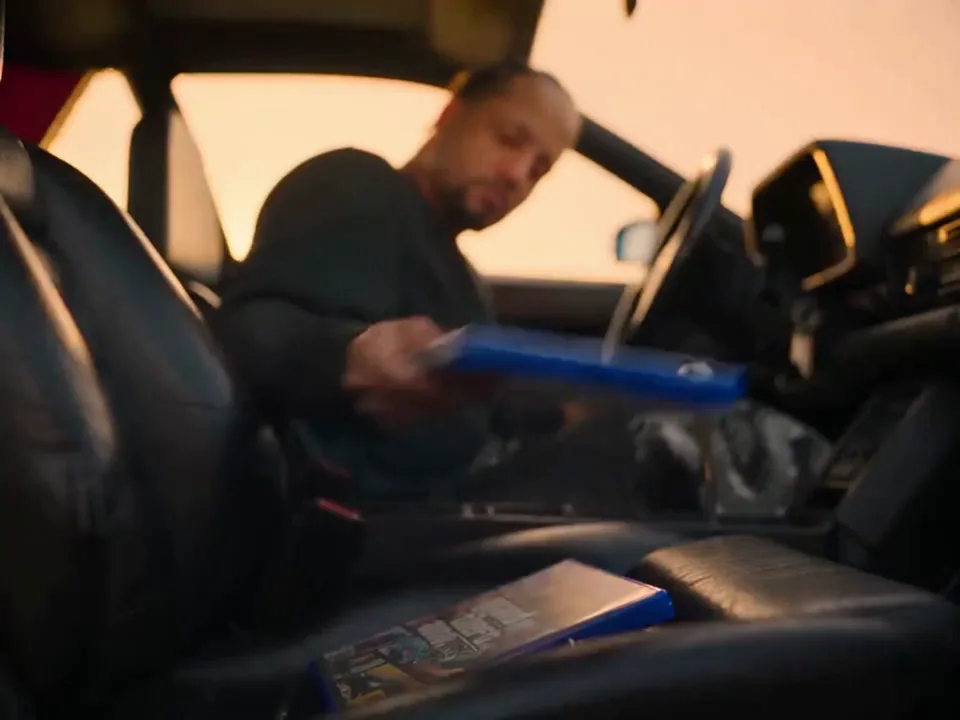
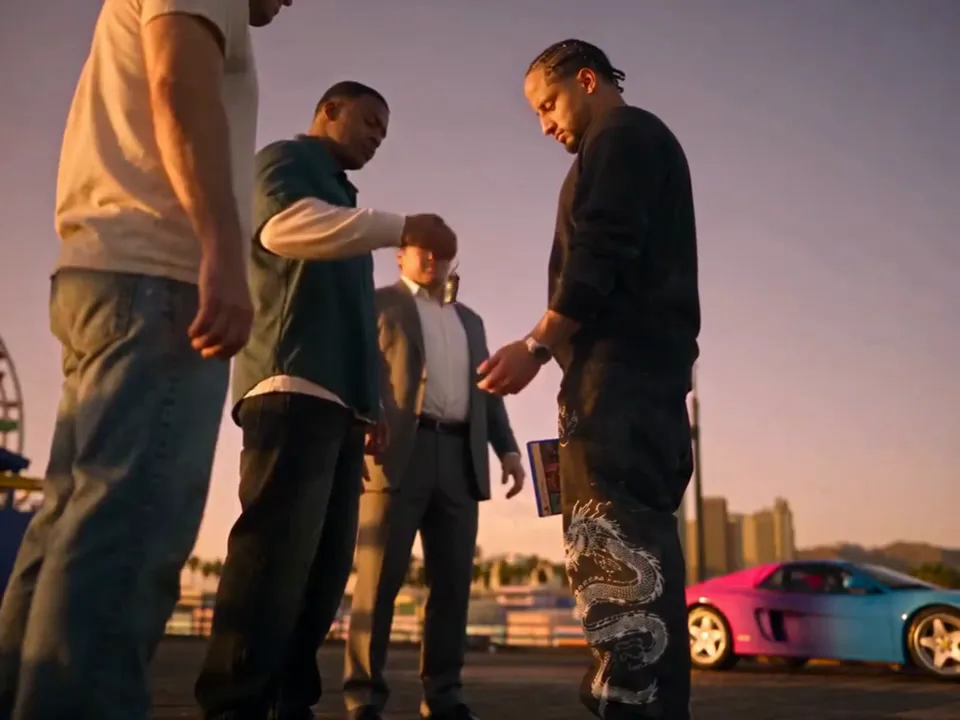
In Goodbye GTA 5 AI Video, a traveler meets three companions, receives a game case and leaves by car. The reference provides the order of shots, location and supporting cast. Your photo guides the traveler across close views and the departure.

Prepared reference for Goodbye GTA 5 AI Video

Create a Goodbye GTA 5 AI Video

Preview Goodbye GTA 5 AI Video and review the settings before generating.

  1. STEP 1

    Preview the scene

    Play the reference and choose the version that fits your idea.

  2. STEP 2

    Add a photo

    Upload the required photo for the displayed role and review any optional image.

  3. STEP 3

    Generate and review

    Check the credit estimate, generate from your account, and inspect the finished video and sound.

Preview Goodbye GTA 5 AI Video

Frames show the prepared reference; results vary.

Prepare the right photo

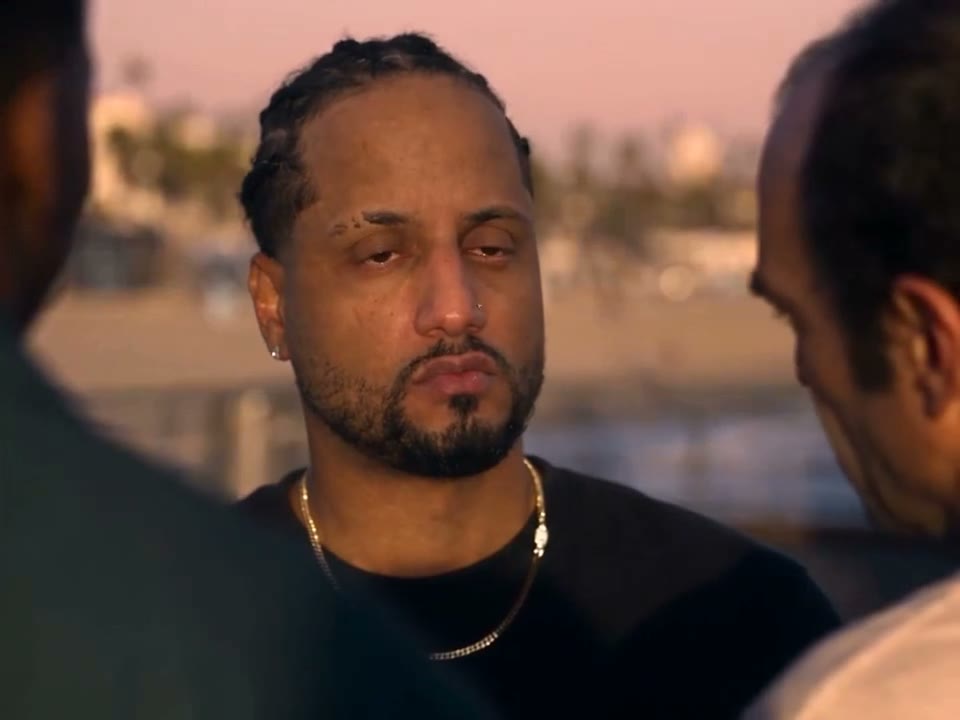
For Goodbye GTA 5 AI Video, choose one well-lit photo with a clear face, visible hair and enough clothing to guide both close and wider views. The other three people are part of the prepared scene and have no separate photo slots.
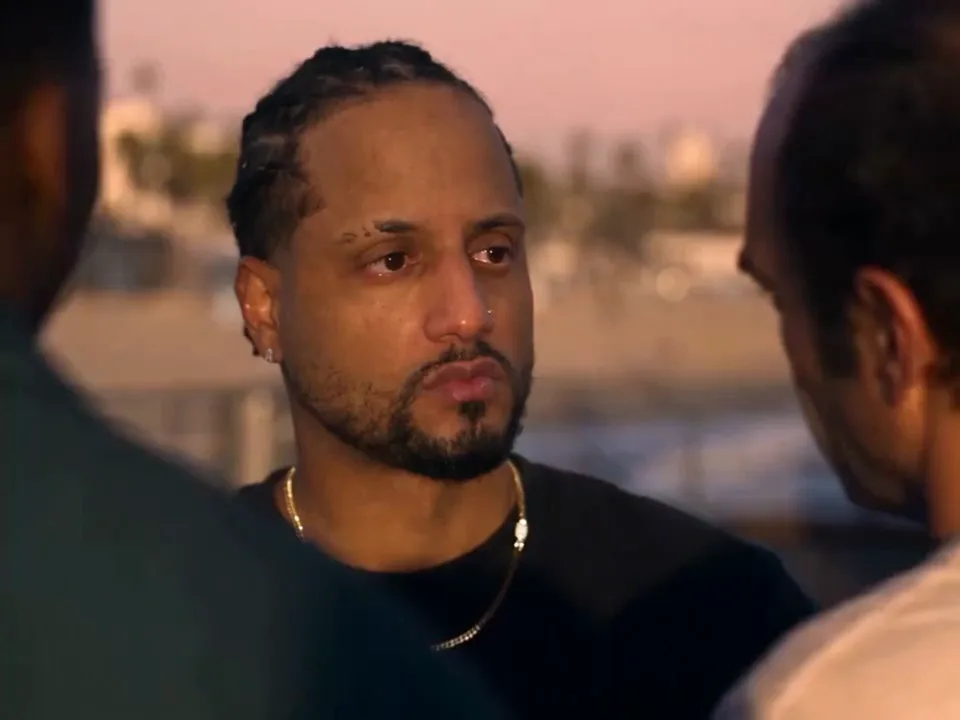
A close view of the traveler during the farewell

Review the complete result

For Goodbye GTA 5 AI Video, watch the exchange and the driving sequence in full. Check the traveler’s face after each cut and look for changes in the case, hands and clothing. The shorter prepared version starts later than the full story.

The traveler greets companions beside a car

Understand the template

In Goodbye GTA 5 AI Video, the full reference and shorter selection show different parts of the farewell. Output can vary, and audio restoration is attempted after generation rather than guaranteed.

The traveler gets into the car

Goodbye GTA 5 AI Video FAQ

Answers about this prepared scene.

What is the story in Goodbye GTA 5 AI?

Goodbye GTA 5 AI follows one traveler through a meeting, a case exchange and a departure by car. The sequence is useful when you want a short farewell story with several distinct beats. Preview the complete Goodbye GTA 5 AI reference before selecting it: the supporting companions, surroundings and vehicle are established by the footage, while your photo guides the departing person.

Which photo should I choose for Goodbye GTA 5 AI?

For Goodbye GTA 5 AI, begin with a well-lit picture of one person facing the camera. Keep the face unobstructed and include some hair and clothing. A very tight crop leaves less information for wider shots, while a distant group picture makes it difficult to identify the traveler. Compare the photo with the Goodbye GTA 5 AI preview, especially the shots where the camera moves closer.

Can the companions have separate photos in Goodbye GTA 5 AI?

The Goodbye GTA 5 AI workspace has one required traveler role. The three companions belong to the prepared scene and do not have independent upload slots. If you want to use several separate portraits, browse a multi-role scene in the trends directory. Adding a group photo to Goodbye GTA 5 AI does not create extra replacement controls or guarantee which person is selected.

How do I decide between the available modes?

Watch the original sequence and compare it with the shorter prepared reference. The full Goodbye GTA 5 AI version includes the early exchange of the case, whereas a shorter selection begins later. Check the length and credit estimate in the form after changing modes. Select the Goodbye GTA 5 AI version for its story beats, not just its runtime: an omitted opening cannot be restored by a photo.

What happens to the car and game case?

The vehicle and case appear in the Goodbye GTA 5 AI reference and are not separate user-controlled inputs. Their appearance can change during generation, particularly around hands or across camera cuts. When you review Goodbye GTA 5 AI, watch the handoff as well as the later departure. If a clean prop is essential, compare another result rather than assuming lettering or small object details will remain exact.

How should I assess the traveler across cuts?

The Goodbye GTA 5 AI scene moves between different camera views, so check the face in the greeting, the exchange and the car sequence. Hair, clothing, hands and the position of the case can vary between frames. A clearer front-facing portrait may help communicate the person’s appearance. Save the Goodbye GTA 5 AI result only after watching the ending; the opening frame does not show how the later shots turned out.

Can I alter the action in Goodbye GTA 5 AI?

The prepared Goodbye GTA 5 AI workflow follows a registered scene and its supported settings. It does not provide separate controls for the order of shots, companions, location or car. To explore a different action, return to the general video generator and select a model that supports your own prompt or reference. Use the dedicated Goodbye GTA 5 AI page when the prepared departure is the part you want to keep.

What should I know before sharing Goodbye GTA 5 AI?

Listen to the completed Goodbye GTA 5 AI video and inspect the full image before sharing. The service attempts to restore reference audio for supported scenes, but restoration can fail, and permissions for a soundtrack are a separate consideration. Use photos you are entitled to upload and share. Goodbye GTA 5 AI is a fan-inspired video workflow; it is independent of the game publisher and does not produce playable gameplay.

Where is my result?

Sign in to the account used for generation and open My creations. The reference player does not show your personal result.

Create Goodbye GTA 5 AI Video

Place your portrait in a fan-inspired farewell before the traveler drives away.

goodbye gta 5 ai