
Prepare the right photo
For GTA 6 Apocalypse AI Video, add a clear photo of the person who will occupy the seated role. A view that shows the face and clothing gives the model useful context when the player reacts.
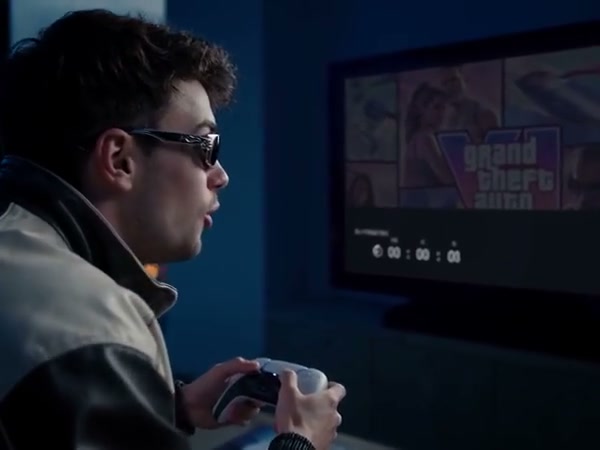
Personalize the player in a dramatic living-room reaction scene.
In GTA 6 Apocalypse AI Video, a seated player holds a controller as a bright flash, a falling object over the city and an approaching wave appear in the reference. The apartment, television and sequence of shots provide the scene.
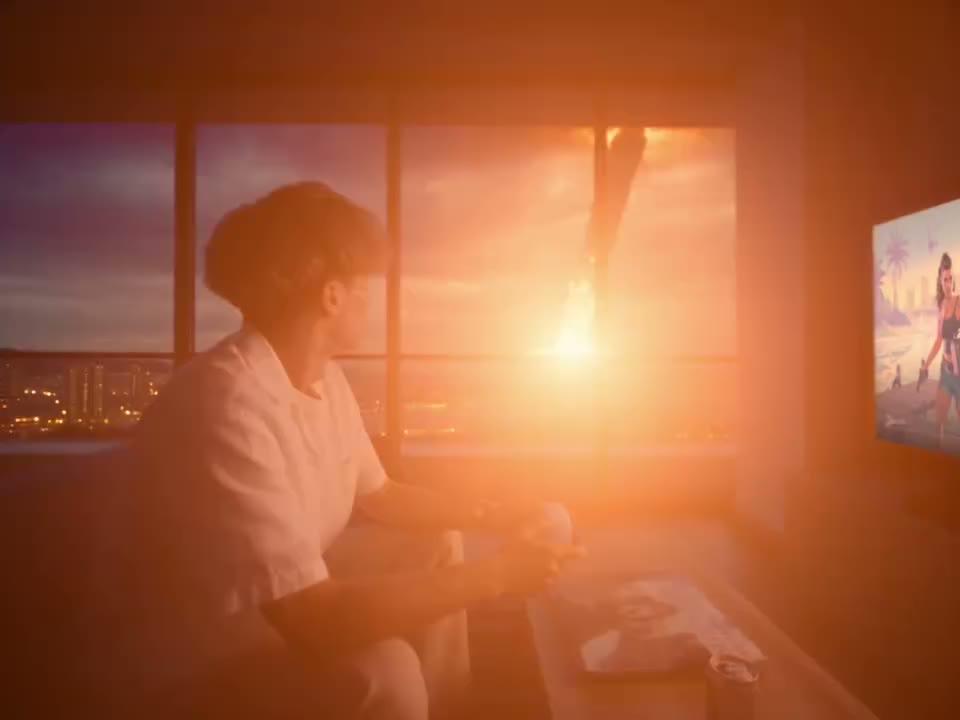
Preview GTA 6 Apocalypse AI Video and review the settings before generating.
STEP 1
Play the reference and choose the version that fits your idea.
STEP 2
Upload the required photo for the displayed role and review any optional image.
STEP 3
Check the credit estimate, generate from your account, and inspect the finished video and sound.
Community-made examples and reference frames; results vary.
For GTA 6 Apocalypse AI Video, add a clear photo of the person who will occupy the seated role. A view that shows the face and clothing gives the model useful context when the player reacts.
For GTA 6 Apocalypse AI Video, play the reaction through the flash and wave, checking that the player’s identity remains recognizable. The television content and other elements stay part of the original reference.
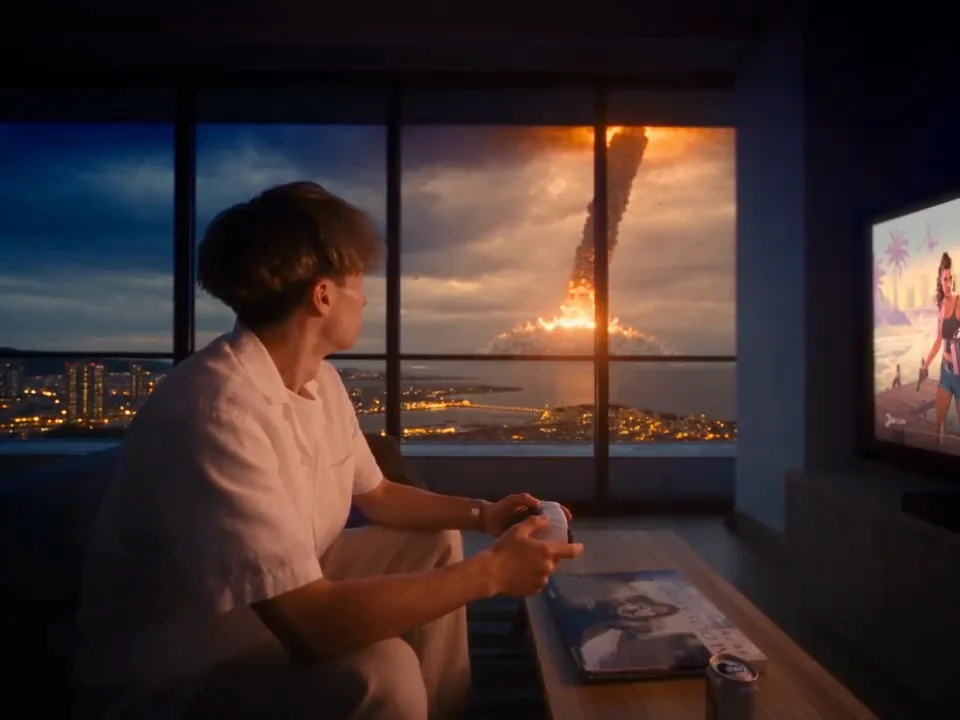
In GTA 6 Apocalypse AI Video, only the seated player has a photo role. The television artwork, apartment and event are not individually editable in this template.
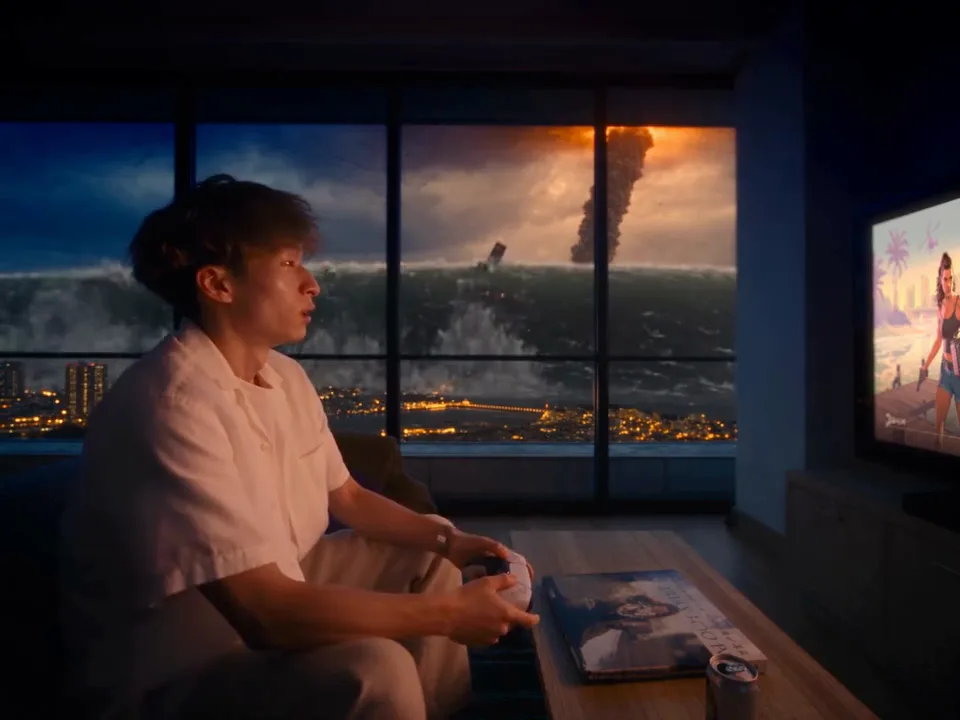
Answers about this prepared scene.
GTA 6 Apocalypse AI is a prepared living-room reaction. A seated player holds a controller while the reference shows a bright flash, an object falling over a city and an approaching wave. Your photo guides the seated person. Watch GTA 6 Apocalypse AI to the end before choosing it: the room, television and sequence of events are part of the source, and the generated result may vary.
The required photo in GTA 6 Apocalypse AI is for the seated player. The television picture and the surrounding room are reference elements, not separate editable photo roles. Choose an image of the person whose reaction you want to feature. Uploading a group picture does not give GTA 6 Apocalypse AI separate controls for each person; a single, recognizable subject makes the intended role easier to understand.
Use a well-lit, unobstructed portrait for GTA 6 Apocalypse AI, with the person’s face, hair and some clothing visible. The source includes seated body movement and a controller, so an image that shows the upper body can offer more clothing context than an extreme close-up. In the finished GTA 6 Apocalypse AI clip, check the player during the reaction as well as in the calmer opening shots.
The flash, falling object and approaching wave are part of the prepared GTA 6 Apocalypse AI reference. The page does not have individual controls for replacing those events or changing their order. If your idea needs a different setting or action, choose a compatible model in the general video workspace and provide supported inputs. Use GTA 6 Apocalypse AI when you want to personalize the reaction shown by this particular reference.
The GTA 6 Apocalypse AI scene contains rapid changes in brightness and camera attention. Such changes can make facial features, clothing and hands harder to keep consistent from frame to frame. Start with a source photo where the face is easy to see, then play the whole result. If an attempt is unsatisfactory, a clearer portrait or another GTA 6 Apocalypse AI generation can provide a useful comparison, with a new credit cost.
GTA 6 Apocalypse AI offers a photo role for the player, not a separate television image field. The screen content follows the prepared scene and may change as part of generation. If the television display is central to your idea, inspect it in the finished GTA 6 Apocalypse AI clip at the intended viewing size. A different workflow with explicit editing controls may be more suitable for a specific screen image.
Check the GTA 6 Apocalypse AI form for the available model, length and credit estimate, then preview the selected reference. A shorter selection can place emphasis on a different part of the reaction. Decide whether the opening context or the dramatic event matters most to your story. Changing the mode or submitting another GTA 6 Apocalypse AI attempt may change the cost shown in the workspace.
Watch the GTA 6 Apocalypse AI result all the way through, including the bright transition and the player’s hands around the controller. Listen to any restored soundtrack and confirm that you have permission to use the portrait and audio. GTA 6 Apocalypse AI is an independent fan-inspired video tool, with no affiliation or endorsement from Rockstar Games; it does not represent a playable game or official game footage.
Sign in to the account used for generation and open My creations. The reference player does not show your personal result.
Personalize the player in a dramatic living-room reaction scene.