
Explore AI Video Trends
Find a prepared scene, watch its preview and choose the photo roles you want to personalize.
Motion studio
Creations from this workspace appear here.
Explore a scene before you create
Compare movement, cast and camera in the prepared AI video trends references.
Look for the action
Search AI video trends by name or browse categories. Watch the whole preview to see where the scene starts and how it ends.
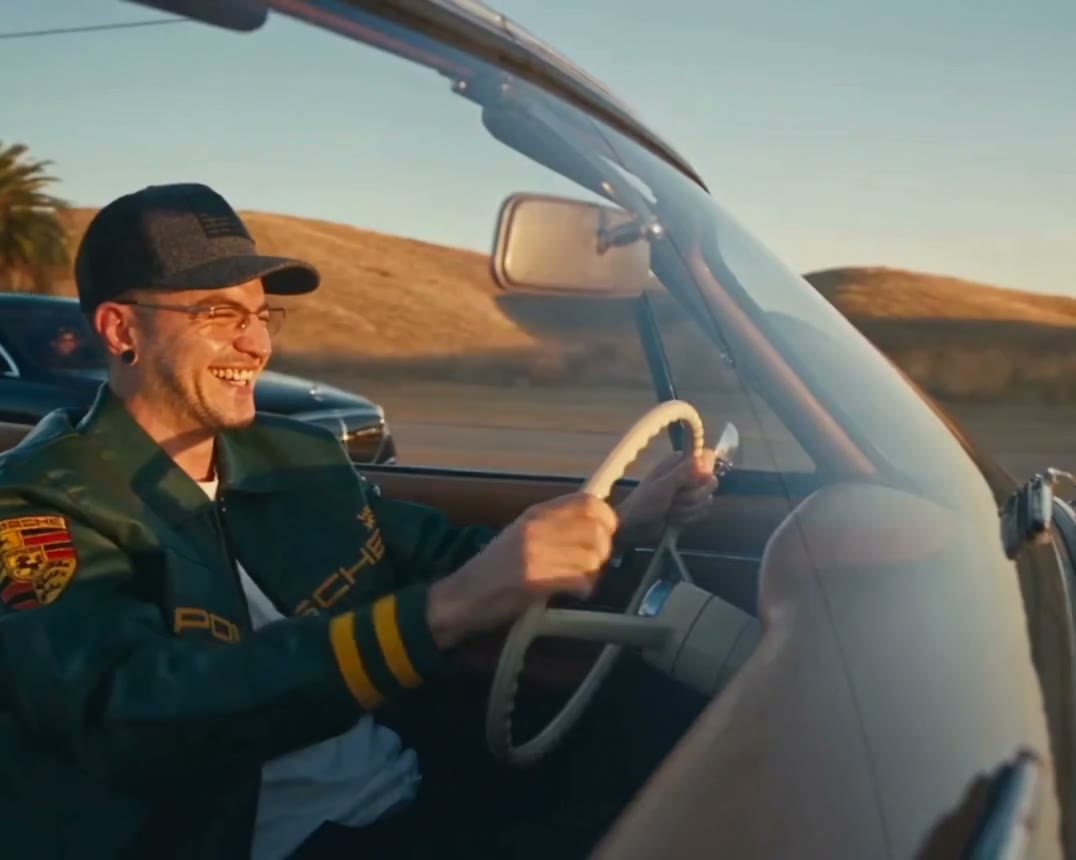
Identify the roles
Load the scene and read the photo labels. AI video trends can use one subject, separate people or optional objects.
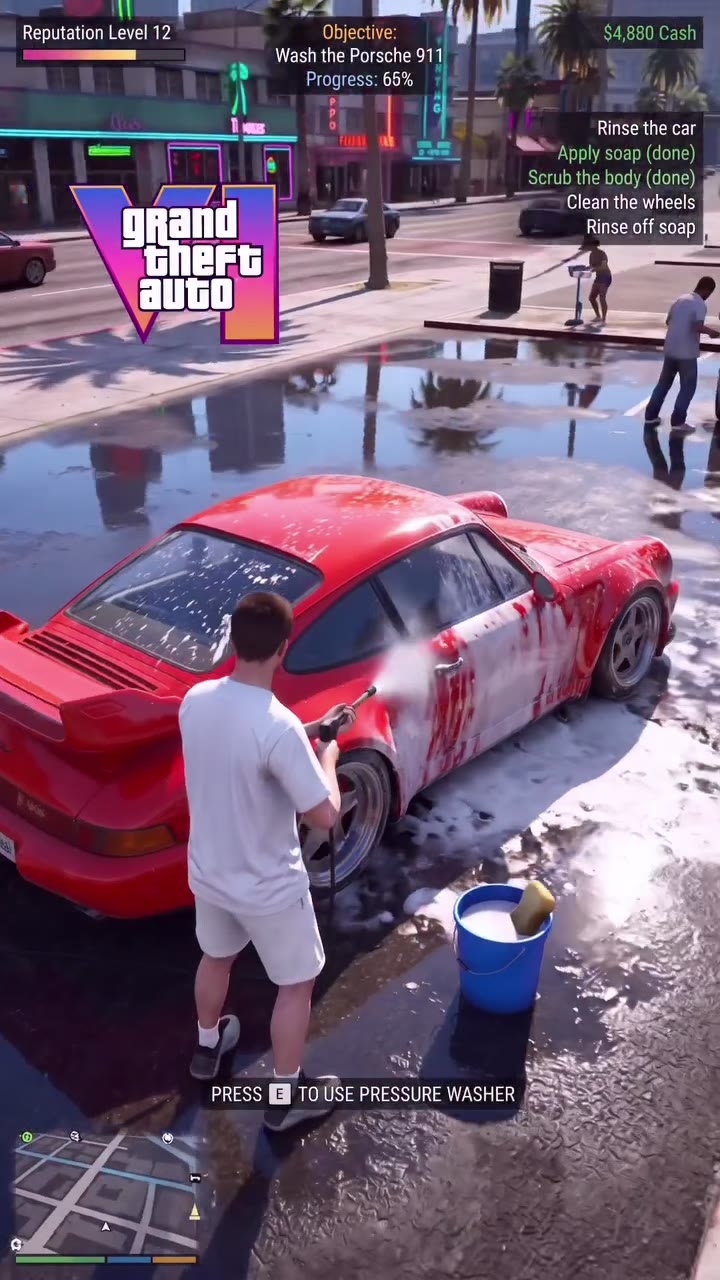
Review the finished video
Check the estimate before submitting, then watch the complete AI video trends result and listen to any soundtrack.
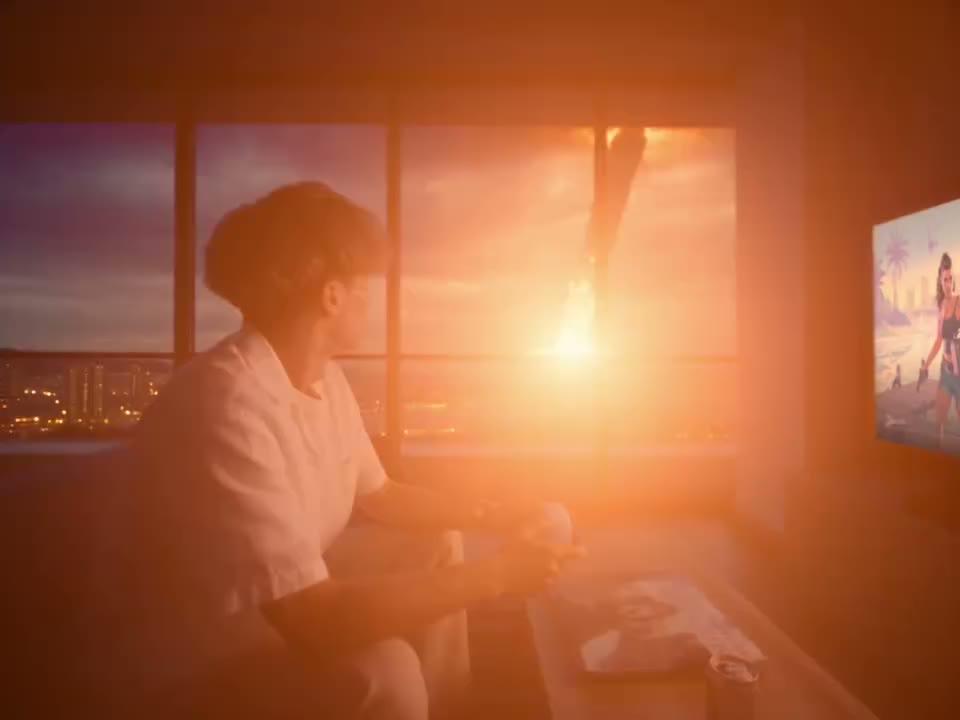
Choose and personalize a trend
Preview, prepare the requested photos and inspect your result.
Step 1
Find a trend
Search AI video trends by name or browse the available categories. Watch the preview to understand the movement and ending.
Step 2
Open its workspace
Load a template and add the required photo for each role. Read any optional role and check the selected mode and estimate.
Step 3
Create your video
Generate while signed in, then review the completed video and sound in My creations before downloading.
AI video trends: questions and answers
What to know before you create.
What are AI video trends?
AI video trends are reusable starting points organized around a prepared scene or performance. The reference supplies a visual action; the workspace shows which photos you can add for that template.
How do I find a particular scene among AI video trends?
Use the directory search or category filters. Search a known name, browse the featured order or try the newest view. Preview AI video trends through their ending, since a familiar opening may lead to a different final action.
Do all AI video trends use one photo?
No. AI video trends have different photo roles and some offer optional inputs. Load the selected template and read the labels before preparing the images; background figures in a preview are not automatically editable.
Where are the GTA scenes?
The home page presents the GTA-themed selection. The directory also includes those scenes alongside other AI video trends, so you can search by name or browse the complete collection.
What is the difference between a preview and my result?
The preview is a prepared reference used to understand the scene. Your result is generated after you submit your photos and settings. Appearance, motion and details can differ from the example.
Can I switch between AI video trends?
Yes. Choose another entry and review the workspace confirmation if existing inputs would be replaced. The new template can have a different cast, duration or estimated credit amount.
Can I start with my own footage?
For a compatible model, leave the selected template and use the free video workspace with your own reference. Review the model’s file and duration requirements, and use footage you have permission to upload.
Do AI video trends have audio?
Audio depends on the scene and model. Some fixed references attempt sound restoration, which can fail. Listen to the completed clip and review rights for any soundtrack before sharing.
How do credits work?
The estimate shown in the workspace reflects the selected model and settings. Review it before you generate; previewing and browsing AI video trends do not submit a generation.
How can I improve a result?
Inspect face changes, hands, overlapping subjects and props across the full video. A clearer photo or a scene with less obstruction may make a useful comparison. Each new generation can use credits.
How do AI video trends differ from custom footage?
AI video trends provide a prepared scene and photo roles. A compatible free video mode lets you supply your own reference footage, with its own file requirements and settings.
What should I compare between AI video trends?
Compare the cast, camera distance, action and ending in the AI video trends previews. A clear routine with one visible subject may be easier to evaluate than a crowded performance.
Can a trend have optional inputs?
Some AI video trends offer optional roles. Read the labels after loading the scene: a visible car or background person is only replaceable if the workspace provides a corresponding input. For example, GTA 6 Car Wash accepts an optional car photo to guide the vehicle’s appearance.
How can I check the selected trend?
The workspace identifies the loaded scene and its required photo roles. Before generating AI video trends, review that selection, the active mode, the duration and the current credit estimate.
Where should I look for artifacts?
Watch AI video trends through turns, interactions and scene cuts. Inspect faces, hands and props, and listen to the finished soundtrack; a preview alone cannot guarantee how a personalized result will look.
Find a scene to make your own
Return to the collection and choose a prepared reference.