Create a video

Required photos1
Settings
Mode
Video length15s
Resolution

Car Drift AI

Turn a photo of your car into a Car Drift AI winter driving clip.

0:00 / —:—
0:00 / —:—

Car Drift AI video ideas

Explore examples of this effect. Open a video for a closer look.

What happens in Car Drift AI?

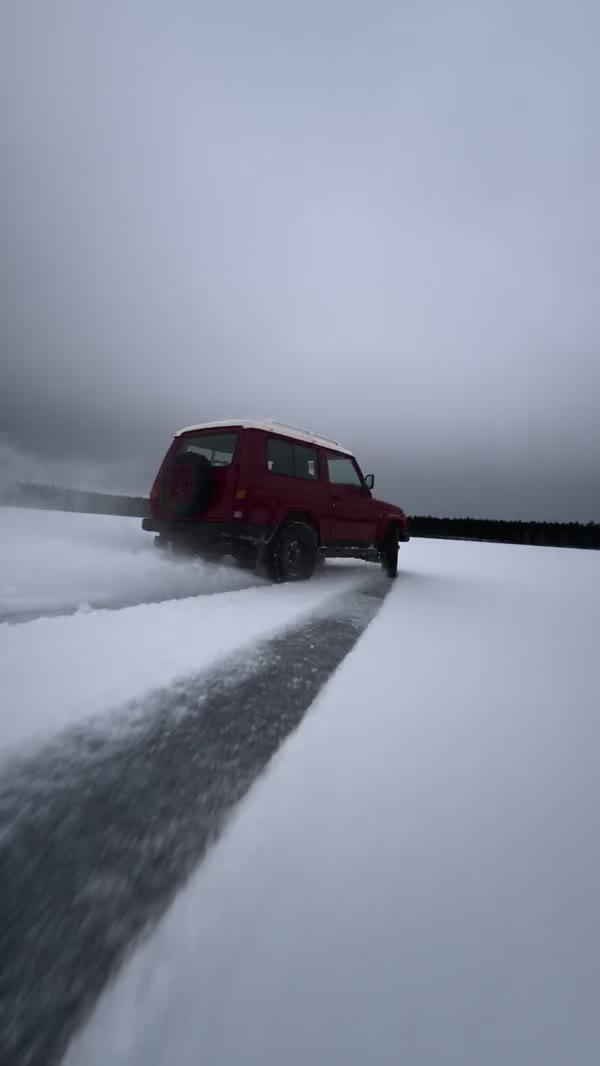
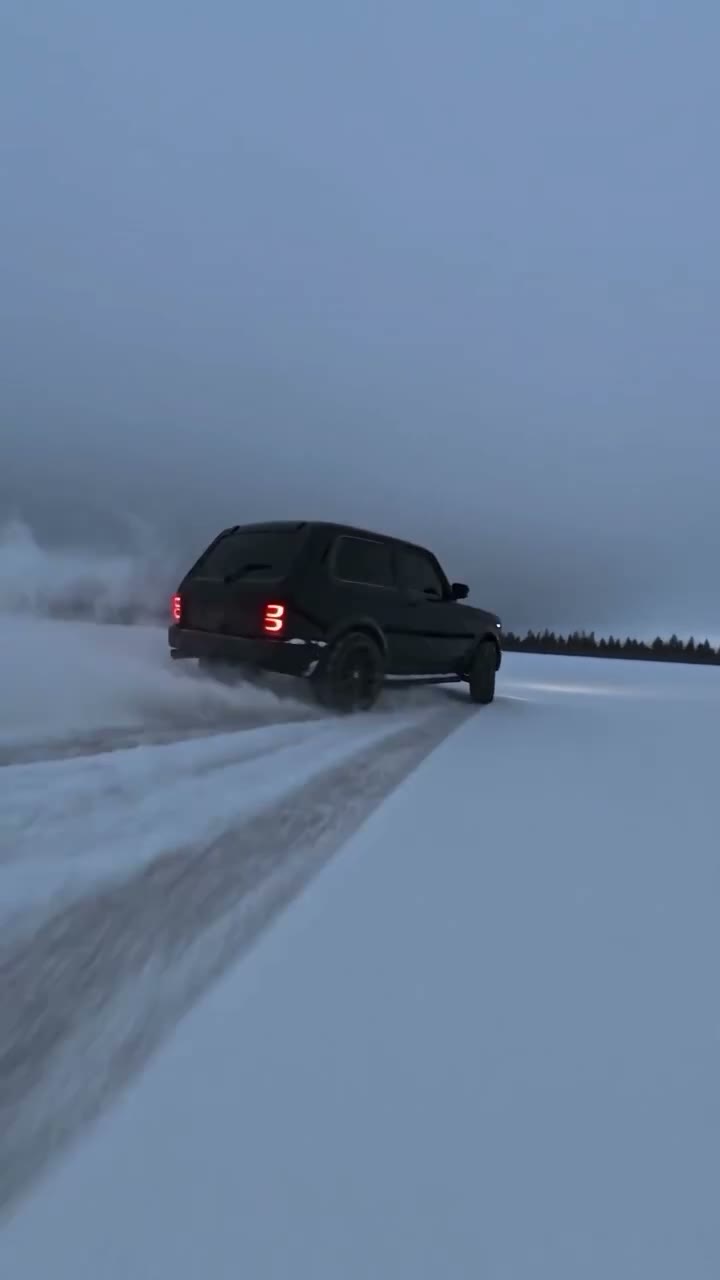
In Car Drift AI, the vertical reference begins near a gloved hand, then follows a car moving over snow and turning away from the camera. Your image guides the vehicle in this scene. The landscape, camera and driving action come from the prepared footage, and the generated motion can differ from what is shown. Car Drift AI is a fictional video interpretation, so there are no steering controls or playable road.

Prepared reference for Car Drift AI

How to create a Car Drift AI video

Preview Car Drift AI and review the settings before generating.

  1. STEP 1

    Preview the movement

    Watch the car leave and turn in the prepared vertical reference.

  2. STEP 2

    Add your car

    Upload one clear photo that shows the vehicle you want to guide.

  3. STEP 3

    Generate and review

    Select a mode, check the estimate and inspect the resulting car and soundtrack.

Preview Car Drift AI

Community-made examples and reference frames; results vary.

Pick the car for the winter scene

For Car Drift AI, upload one photograph of the car you want to feature. Make the vehicle prominent, with its general body shape and paint easy to see. If it is blocked by another car or occupies only a small corner of the image, the model has less information to work with. The photo guides the vehicle rather than supplying a separate driver. Details hidden from the original angle must be inferred, and a good image cannot guarantee an exact match.
Pick the car for the winter scene

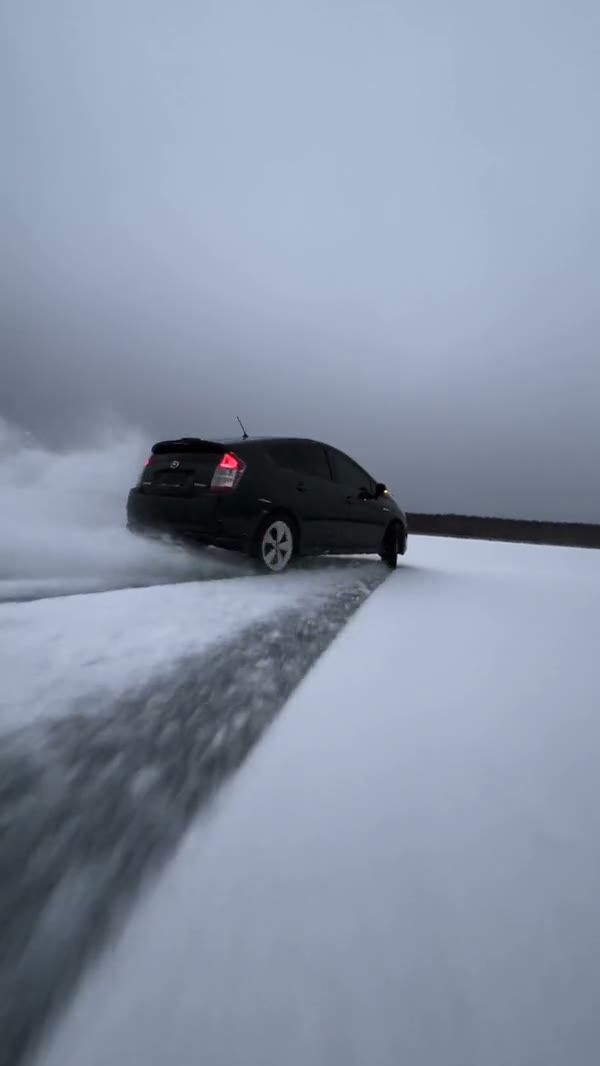
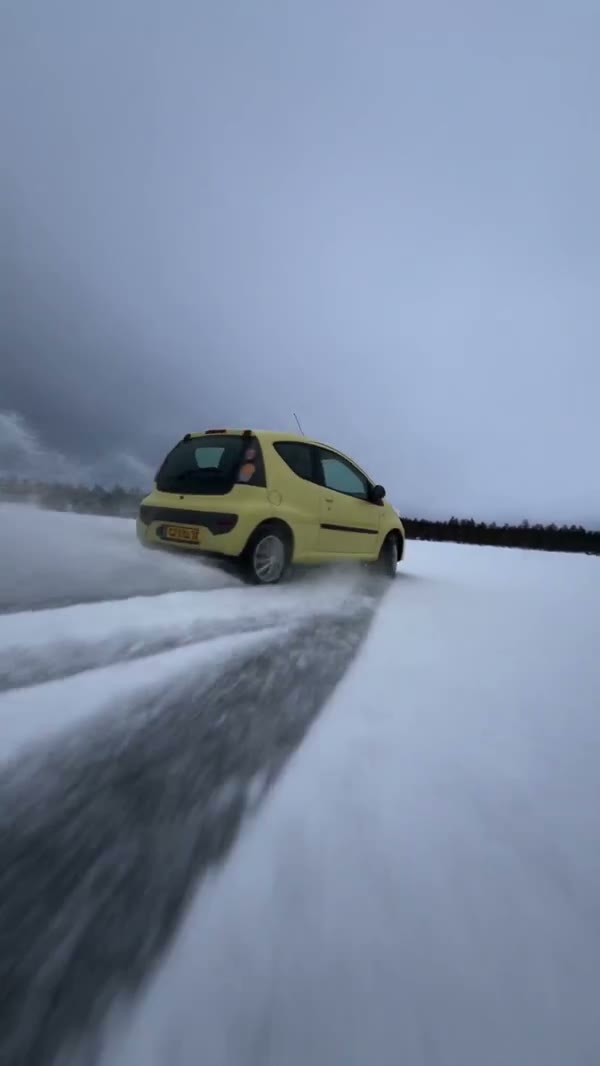
Inspect the vehicle through the turn

For Car Drift AI, watch the finished drive at normal speed, then pause during the turn. Compare the car’s outline, color, wheels and windows from the near view through the distant movement. Snow, tire contact, reflections and small lettering can change from frame to frame. If a particular emblem or plate matters, inspect it in the delivered file; the model is not a text or logo editor.

Inspect the vehicle through the turn

Choose the prepared driving sequence

In Car Drift AI, the complete prepared reference runs slightly over 15 seconds. Economy and Standard use a selection of about 14.9 seconds, while Original follows the full source. Their settings and displayed estimates differ. The workflow attempts to restore source audio after generation. The snowy setting, road and camera cannot be selected independently on this page, and you should check the soundtrack and its permissions before sharing.

Choose the prepared driving sequence

Car Drift AI FAQ

Answers about this prepared scene.

What does Car Drift AI create?

Car Drift AI makes a vertical, fictional driving video using one vehicle image and a prepared snowy reference. The car moves away and turns, while the setting and viewpoint follow the source. The appearance and movement in your result can vary.

What photograph should I choose?

Choose one image in which the car is large enough to recognize, with its shape and color visible. A very tight crop of a badge or a crowded parking scene gives the model less context about the intended vehicle.

Can I provide a driver photo?

The required role is the car itself. This Car Drift AI page does not have a separate driver field. The reference supplies the vehicle motion and surrounding action.

Can I change the snow or road?

The snowy location, camera and turn follow the prepared clip. There is no independent weather or route selector in this workflow.

How do the reference lengths compare?

Original uses the full source, a little over 15 seconds. Economy and Standard use an approximately 14.9-second prepared selection with different settings. The workspace displays rounded durations.

Will Car Drift AI keep my license plate?

Small text, plates and badges can vary or become unclear as the vehicle moves. Check the final video before relying on a specific detail.

Does the video include audio?

The source contains sound and the service attempts to restore it after generation. Listen to the completed file and check the rights relevant to your use.

Where do I find the finished video?

Sign in with the account used to create the task and open My creations. Watch the whole clip there before downloading it.

How can I compare Car Drift AI attempts?

Keep the same input image when comparing Car Drift AI modes so you can focus on the length and movement. Every submission is a separate generation, and another attempt may use credits. Check the estimate before you create it.

What happens to the setting in Car Drift AI?

The winter ground, distant surroundings and camera framing in Car Drift AI follow the prepared video. They can be reinterpreted by the model, but the form does not offer independent controls for scenery or weather.

Can I use Car Drift AI for a vertical montage?

The Car Drift AI reference is portrait-oriented, so it can be combined with other vertical material in an editor. Check the actual exported size and review your rights to every clip and soundtrack before publishing the montage.

Why may Car Drift AI alter a car detail?

A photo shows only limited angles. In Car Drift AI, the model must infer how the vehicle looks while moving and turning. Compare the overall silhouette and paint first, then inspect wheels, windows, text and reflections.

Where is my result?

Sign in to the account used for generation and open My creations. The reference player does not show your personal result.

Create Car Drift AI

Choose your vehicle picture and preview the snowy drive.

Car Drift AI